
Facilitated Planning Poker is a live session in Easy Agile TeamRhythm where your team works through the backlog together - everyone focused on the same work item at the same time. The team votes, discusses the differences, and lands on an estimate together, building a shared understanding of the work along the way. A facilitator guides the session: they reveal the votes and save the agreed estimate back to Jira.
This page is about the Facilitated Planning Poker session. If you're looking for the Planning Poker panel on the Jira work item view, see Planning poker in the Jira issue view.
Facilitated Planning Poker is available for Early Access on Jira Cloud only. If you'd like your site to have access, contact the Easy Agile Support Team.
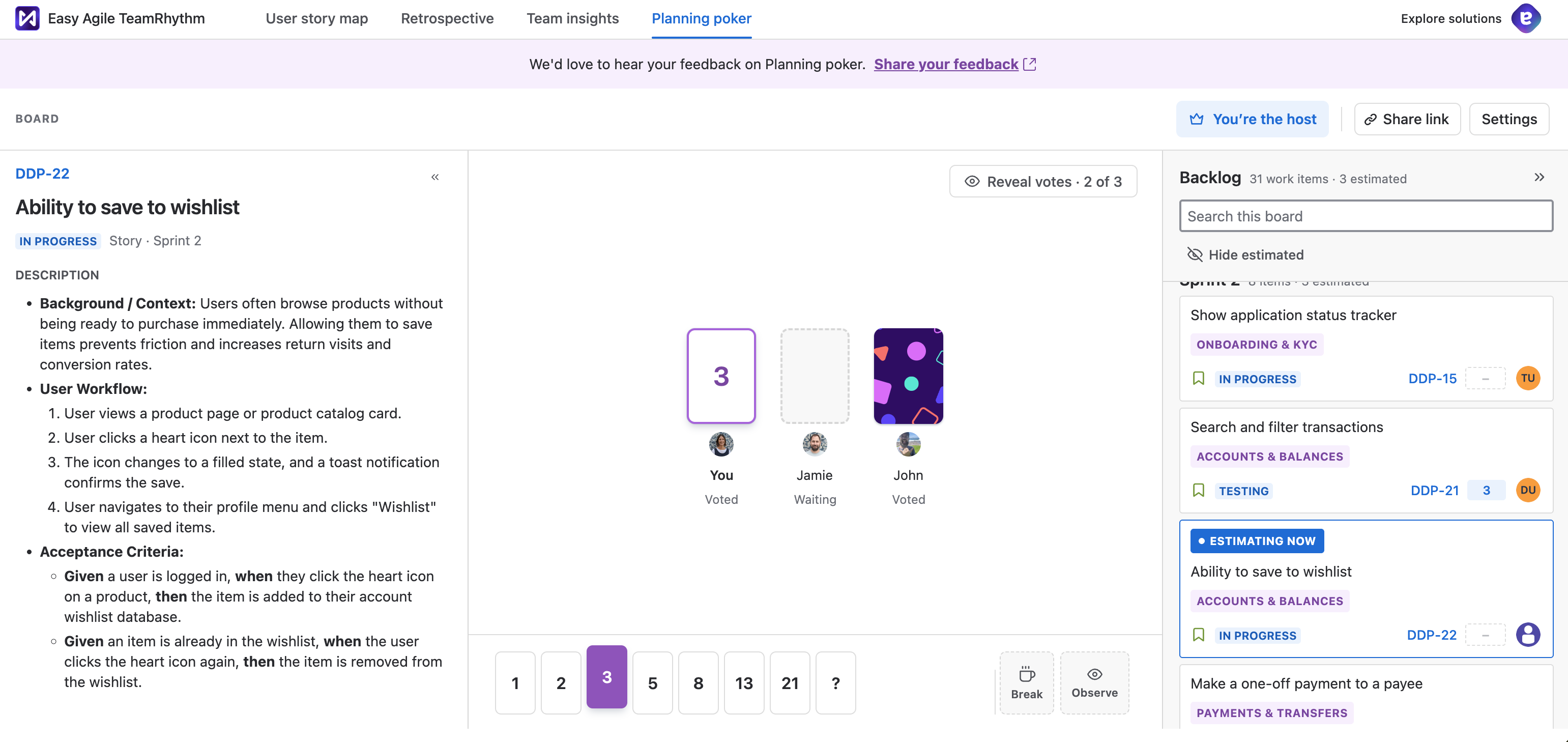
Accessing Facilitated Planning Poker
The Planning poker tab only appears on Jira Cloud sites with Early Access. If you can't see it, contact the Easy Agile Support Team to request access.
There are 3 ways to open Facilitated Planning Poker:
-
Select the Planning poker tab in Easy Agile TeamRhythm - it sits alongside your story map, retrospectives, and team insights.

-
Select Try the new Planning Poker experience from the Planning Poker panel on the Jira work item view.

-
Open a link shared by a teammate. Anyone in a session can click Share link to copy an invitation link to share with the rest of the team.

Roles in a session
There are three roles in a Facilitated Planning Poker session:
-
Facilitator - runs the session. The facilitator chooses the work item to estimate, reveals votes, and saves the agreed estimate to Jira. One person per session holds this role, and anyone can claim it.
-
Estimator - votes on each work item. Everyone joins a session as an estimator.
-
Observer - follows the session without voting. Observers are not counted towards the total votes count.
You can switch between estimator and observer at any time during a session.
Each role is described in more detail below.
Understanding the facilitator role
The facilitator runs the planning poker session and has more control than the rest of the team.
To start the session, someone will need to select Claim host in the toolbar to become the facilitator.

Only one person can act as the facilitator. The facilitator can either be an estimator or observer.


Only the facilitator can:
-
View and edit settings (this button is hidden from other users)
-
Select the work item the team is estimating from the backlog panel
-
Reveal votes
-
Clear votes for a re-vote
-
Save the agreed estimate to Jira
A facilitator who leaves the session remains the facilitator. If your facilitator has left and votes can't be revealed or saved, another team member should select Claim host to take over the session.
Estimating or observing
Everyone joins a session as an estimator, ready to vote on each work item. Estimators count towards the vote total - teams usually wait until every estimator has voted before revealing the votes.
Switch to observing if you're following the session but not estimating - for example, a product owner or a stakeholder sitting in. Observers can be involved in the discussions and see the voting results, but don't vote and aren't counted towards the vote total.
You can switch between estimating and observing at any time - your role isn't fixed for the whole session, so it's possible to sit out for the work items that aren't relevant and vote on the ones that are.

How to run a Facilitated Planning Poker session
1. Prepare the backlog
Estimation goes faster when the backlog is ready before the team joins. Before the session:
-
Check the work items you plan to estimate have clear summaries, descriptions, and acceptance criteria
-
Reorder your backlog to make sure the most important items are at the top
-
Select Hide estimated in the backlog panel to see what still needs an estimate
If you're the facilitator - before the session, open settings to choose your estimation deck and decide if you want auto-reveal and auto proceed to be on or off- see Session settings for more details.
2. Invite team members to the session
Use the Share link button to copy the link to the session and share it with your team. Everyone will initially join as an estimator.
3. Select a work item to estimate
The backlog panel on the right shows the work items from your board. Any participant can browse the backlog, but only the facilitator can select the work item the team estimates.
To find the right work item, you can:
-
Search the backlog
-
Select Hide estimated to show only work items without an estimate
-
Expand and collapse sprints (if using a Scrum board)
When the facilitator selects a work item, other participants will see an Estimating now pill on that work item in the backlog. The list doesn't scroll automatically, so scroll to the highlighted item to follow along.
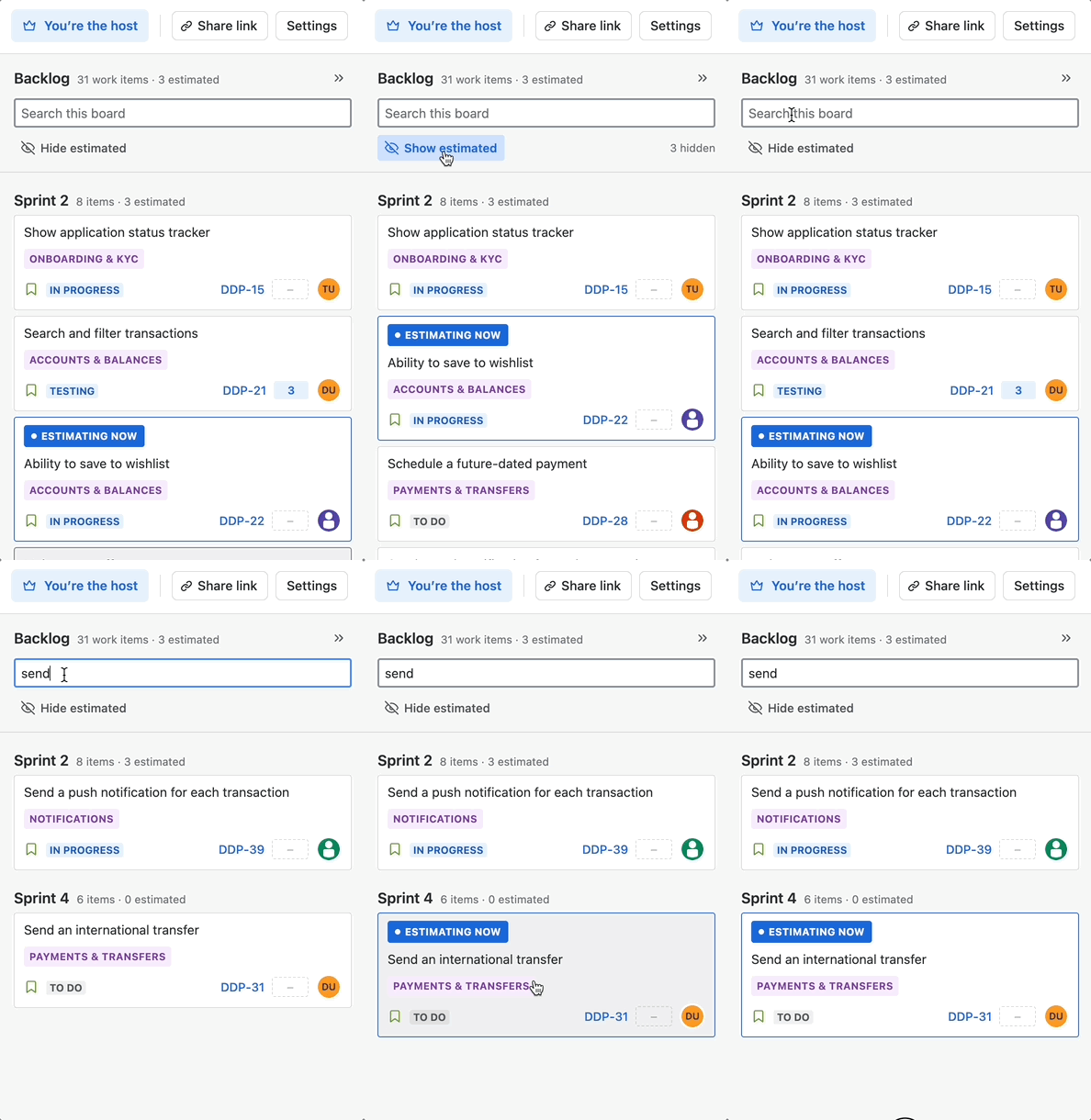
You can collapse the backlog panel with the chevron in its header to give the session more room.
When a work item is selected, its summary and description appear on the left-hand side of the session, with your team's estimation cards in the middle.
You can edit the details of the work item by clicking the work item key to open the native Jira view.
4. Vote on a work item
Select a card to cast your vote. If the session uses the free numeric entry option, type your estimate into the field to record your vote.
Change your vote by selecting a different card at any time before the reveal.
From the centre panel, you can easily see how many people are voting (total number of estimators in the session), who has voted and who is still deciding.
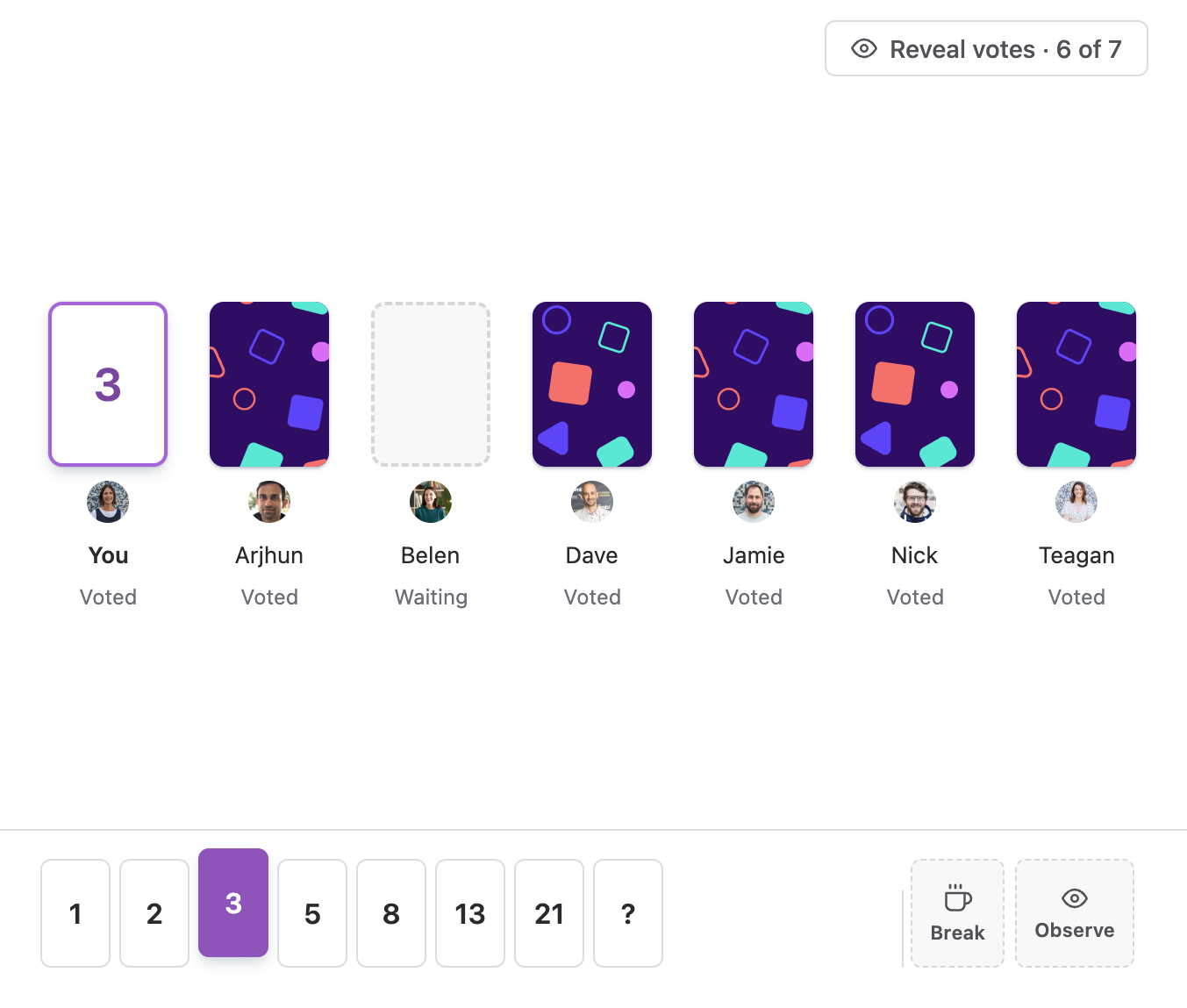
5. Reveal votes
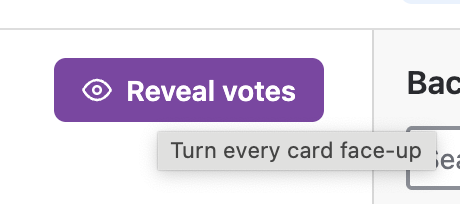
Votes stay hidden until the facilitator selects Reveal votes - or, if auto-reveal is turned on, until every estimator has voted.
After the reveal, you'll see the vote statistics and a suggested estimate based on the votes. This is a good moment to discuss - a wide spread of votes usually means the team understands the work differently.
If there’s a wide range of votes or new information is discussed after the reveal, the facilitator can select Vote again to clear the votes and run another voting round.
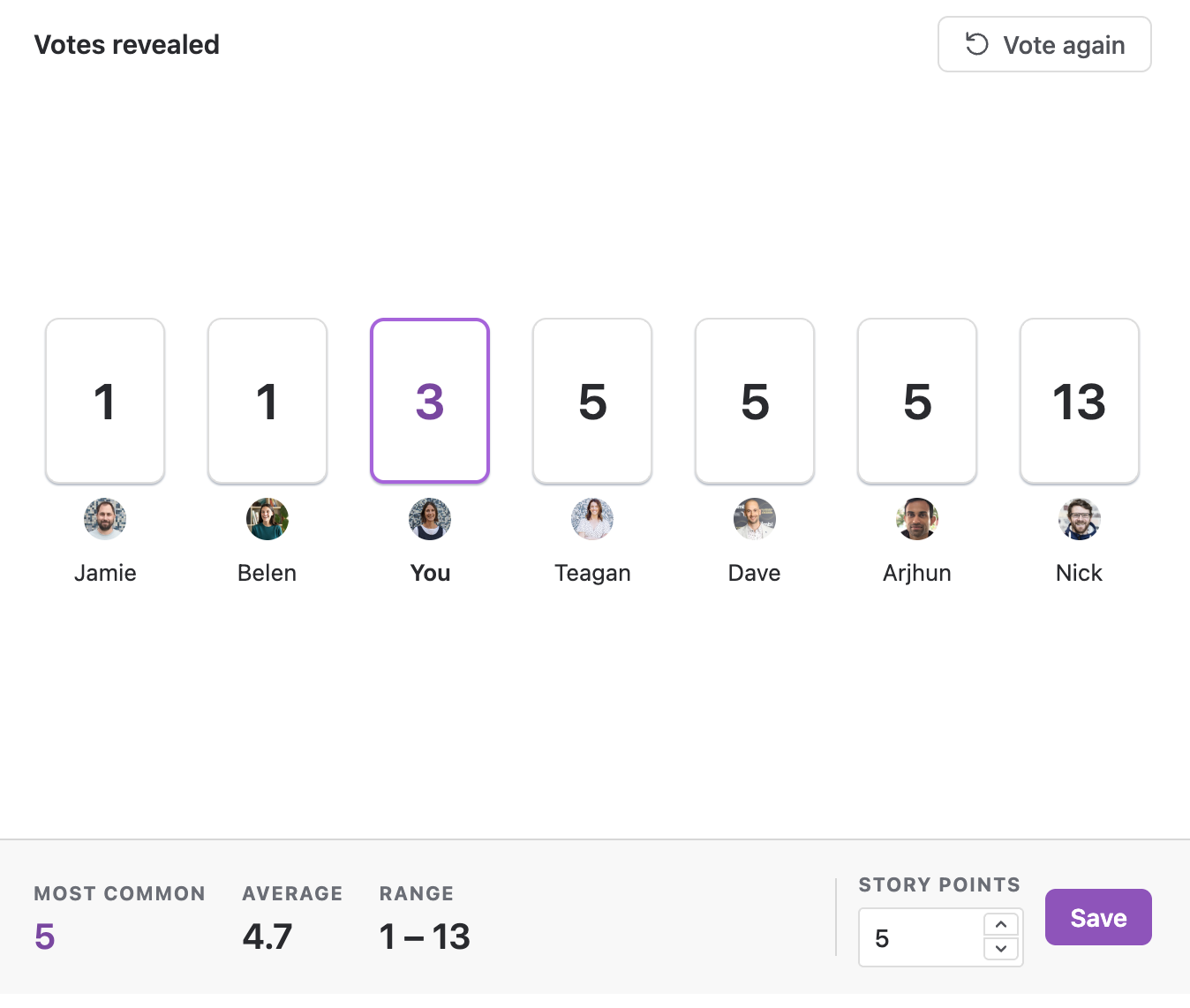
6. Save the agreed estimate
When the team agrees on a number, the facilitator can accept the suggested estimate or adjust the number before saving. The estimate is updated on the Jira work item using your board's estimation field.
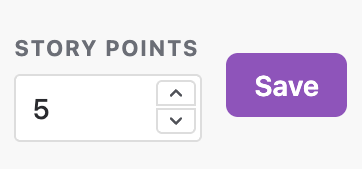
If the estimate isn’t saved to the correct field or can’t be saved, check the configuration in Settings. If you’re still having issues please reach out to our support team.
If Move to the next work item is turned on in the session settings, the next work item is automatically selected after the estimate is saved. If it's turned off, the session stays on the same work item and the facilitator will have to manually select the next item in the backlog.
Session settings
Only the facilitator can view and change the session settings - the settings button is hidden from everyone else.
The settings menu allows you to configure:
-
Estimation deck - the cards your team votes with, including a free numeric option where estimators can manually type a value instead of picking a card
-
Estimation field - shows the Jira field estimates are saved to. This comes from your board's estimation settings and can't be changed here; there’s a link to your board configuration if you need to change it
-
Auto-reveal - reveal votes automatically once every estimator has voted
-
Auto proceed to next - move to the next work item automatically after saving an estimate
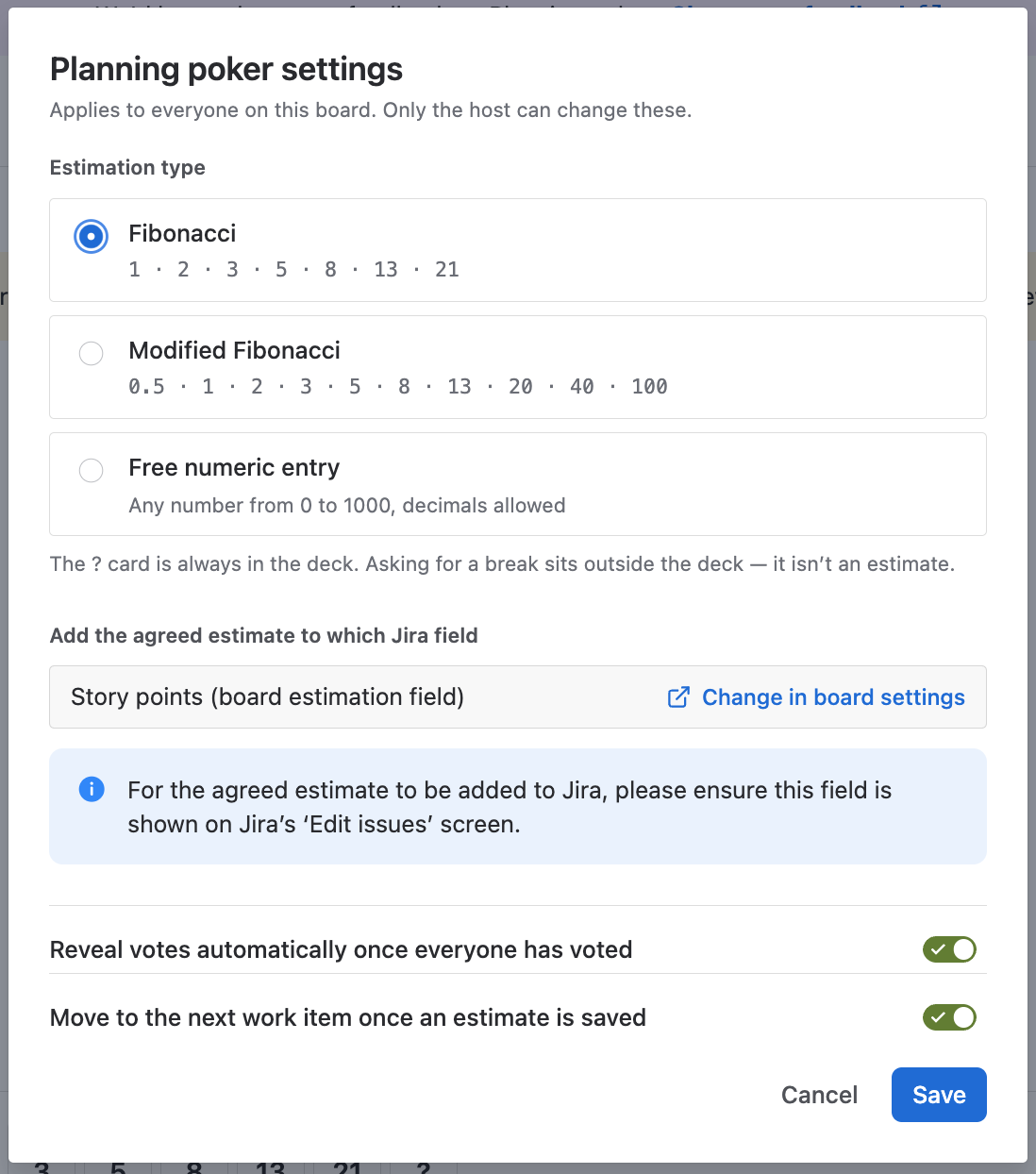
Settings apply to the whole session - a change affects every participant.
Requesting a break
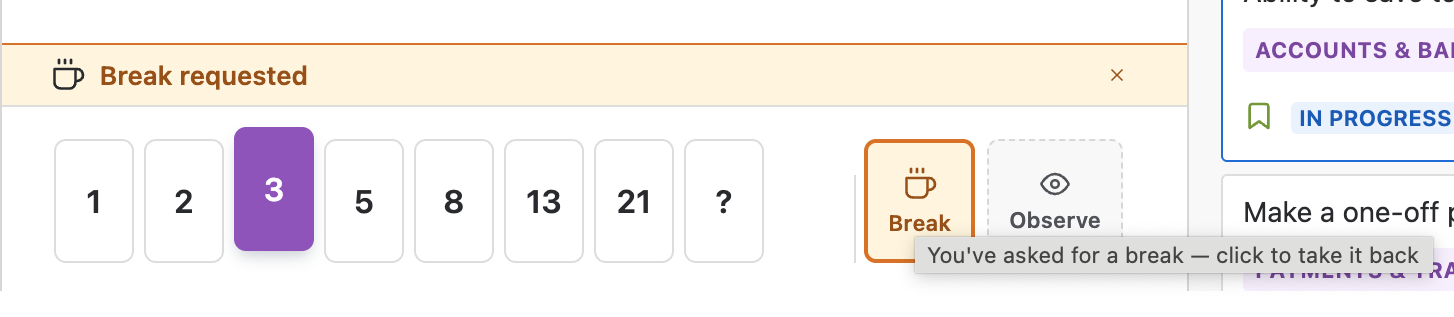
A traditional planning poker deck includes a card for calling a coffee break, and TeamRhythm’s Facilitated Planning Poker keeps that tradition.
Select Break if you need one: the request is anonymous. Everyone in the session sees that someone would like a break so you can discuss when would be a suitable time. Anyone in the session can request a break at any time.
Break requests clear when the facilitator moves to a new work item.
Request access and share your feedback
If you’d like early access to Facilitated Planning Poker please contact the Easy Agile Support Team.
Once you have access, we’d love to hear your feedback. Click the Share your feedback banner to tell us what's working, what’s not and where you’d like us to take the product next - every piece of feedback goes straight to the team working on the feature.