
The Site migration page in Easy Agile TeamRhythm moves retrospectives from one Jira Cloud site to another. A Jira administrator exports the retrospectives to a file from the old site, then imports the file on the new site.
Available on Jira Cloud only. If you are moving from Jira Data Center to Jira Cloud, see Migrating TeamRhythm with JCMA.
When to use Site migration
Use Site migration when you have moved Jira projects and boards between two Jira Cloud sites, for example with Atlassian's Copy product data. Atlassian copies your Jira data but leaves app data behind, so retrospectives do not arrive on the new site until you move them with this page.
Before you start
-
You need to be a Jira administrator on both sites.
-
Easy Agile TeamRhythm must be installed on both sites.
-
Copy your Jira projects, boards and sprints to the new site first. Retrospectives are matched to boards and sprints by name, so the boards and sprints must exist on the new site before you import.
What is moved
For each board you select, the export file holds:
-
Every retrospective on the board, with its columns, items, groups, comments, reactions and mood survey responses
-
Retrospective templates saved for that board
The following are not moved:
-
Retrospective templates that are shared across the whole site
-
Retrospective categories
-
Planning poker sessions
-
Saved views and board settings for the User story map
Open the Site migration page
-
In Jira, select Settings (the cog icon), then Apps.
-
In the sidebar, under Easy Agile TeamRhythm, select Site migration.
The page has two tabs: Export from this site and Import to this site.
If you see "Site migration is not available on this site yet", contact the Easy Agile Support Team.
Export retrospectives from the old site
-
On the old site, open the Site migration page and stay on the Export from this site tab.
-
Choose what to export:
-
To export everything, select All boards with retrospectives on this site.
-
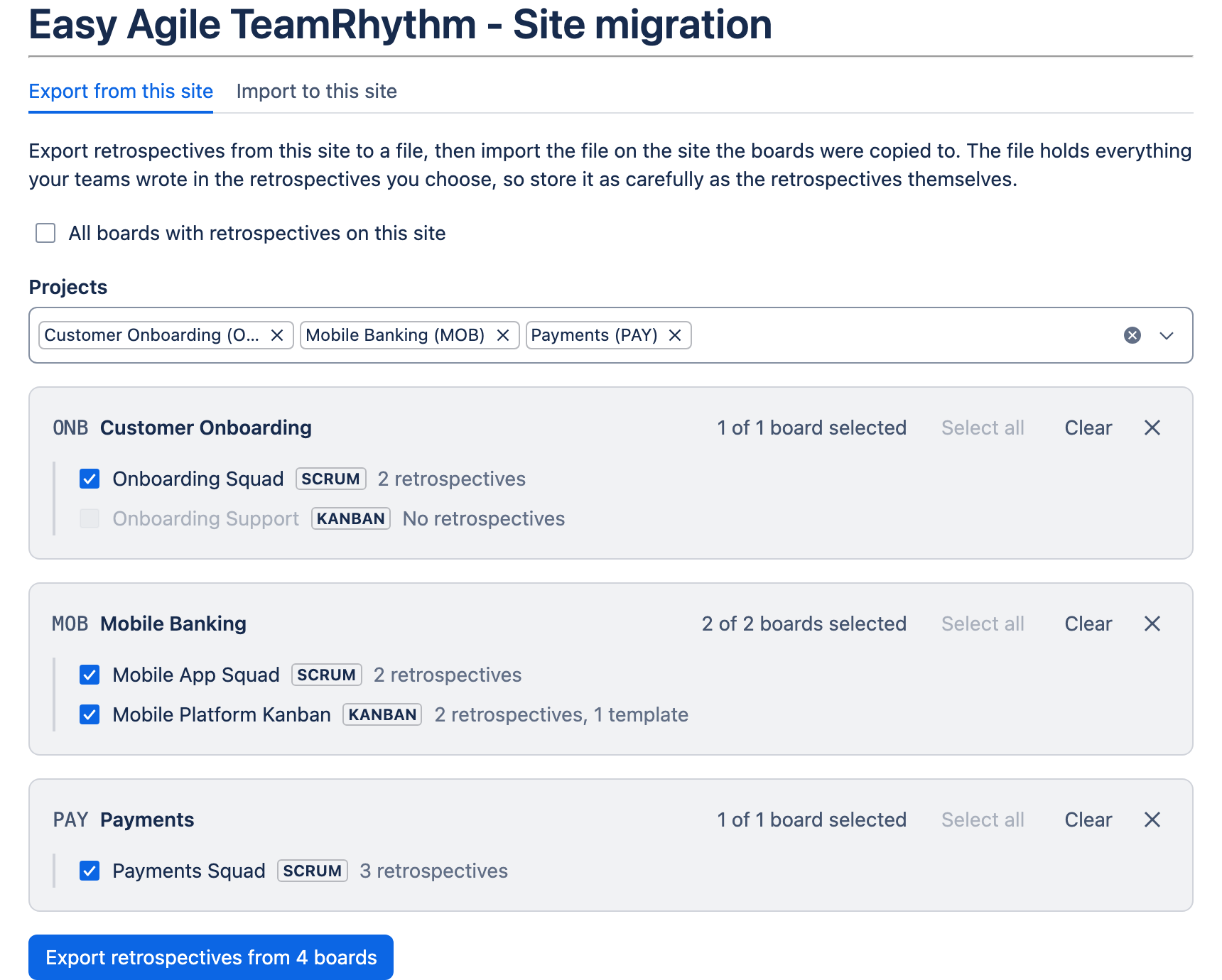
To export some boards, select one or more projects in the Projects field. Each project shows its boards and how many retrospectives and templates each board holds. Boards with something to export are selected for you. Clear the checkbox for any board you want to leave out.
-
-
Select Export retrospectives from n boards. Keep the browser tab open while the export runs.
-
When you see Export ready, select Download export file. The file is saved as
teamrhythm-retrospectives-date.json.
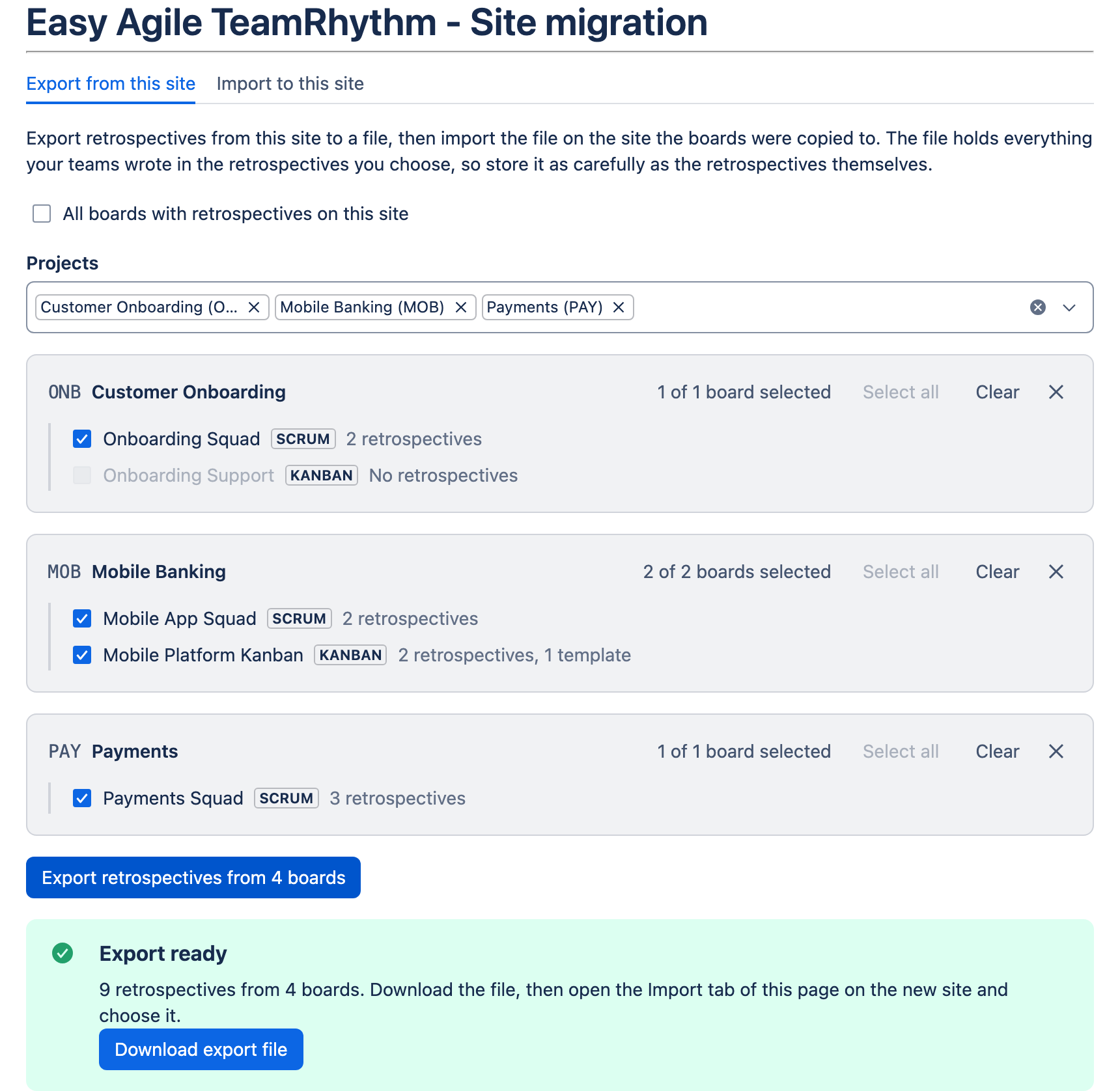
The export file holds everything your teams wrote in the retrospectives you selected. Store and share it as carefully as the retrospectives themselves, and delete it when the migration is finished.
If a retrospective cannot be read, the export still finishes. A warning lists each retrospective that is not in the file. Run the export again to retry them.
Import retrospectives to the new site
-
On the new site, open the Site migration page and select the Import to this site tab.
-
Next to Export file, select the file you downloaded from the old site.
-
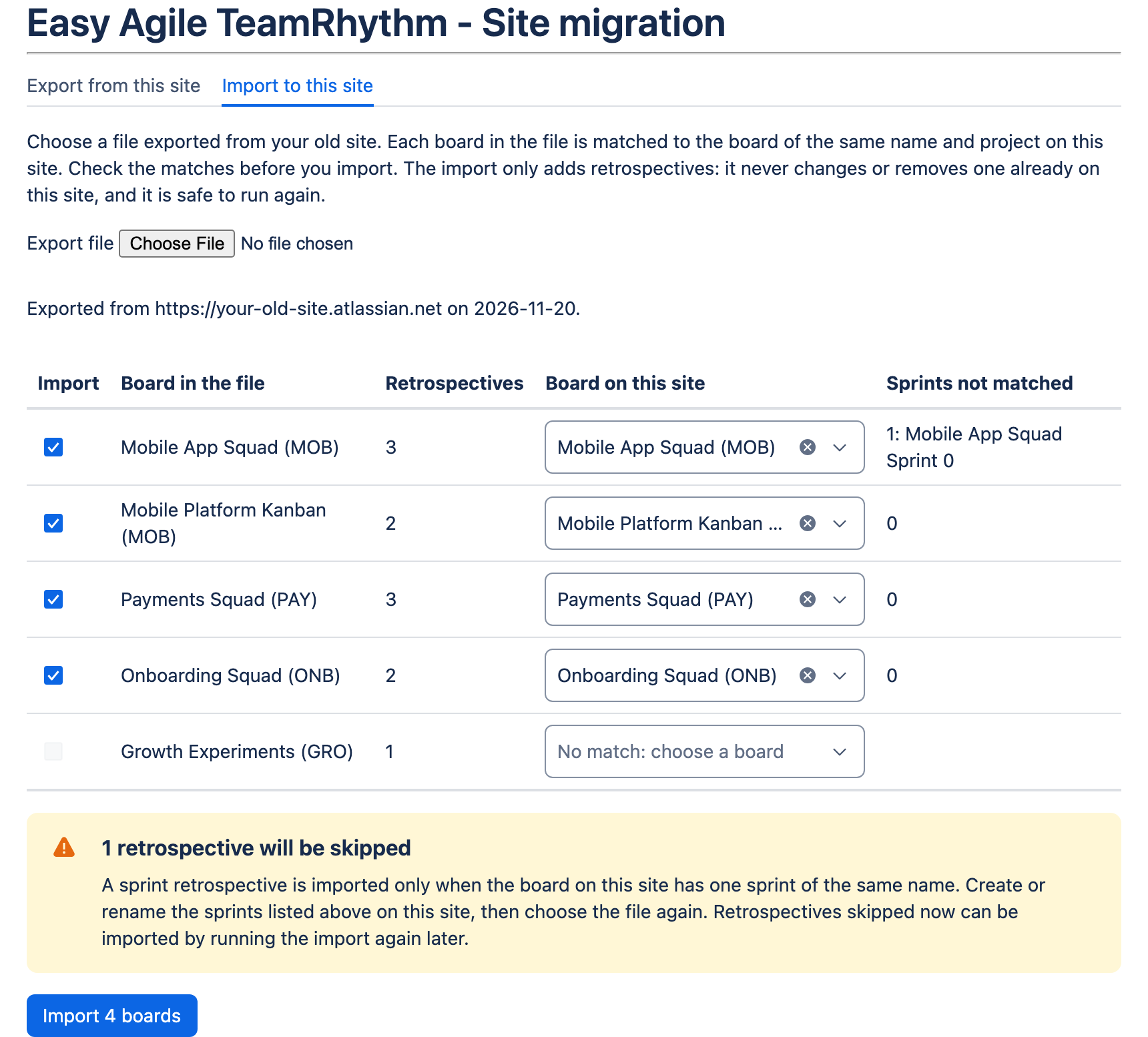
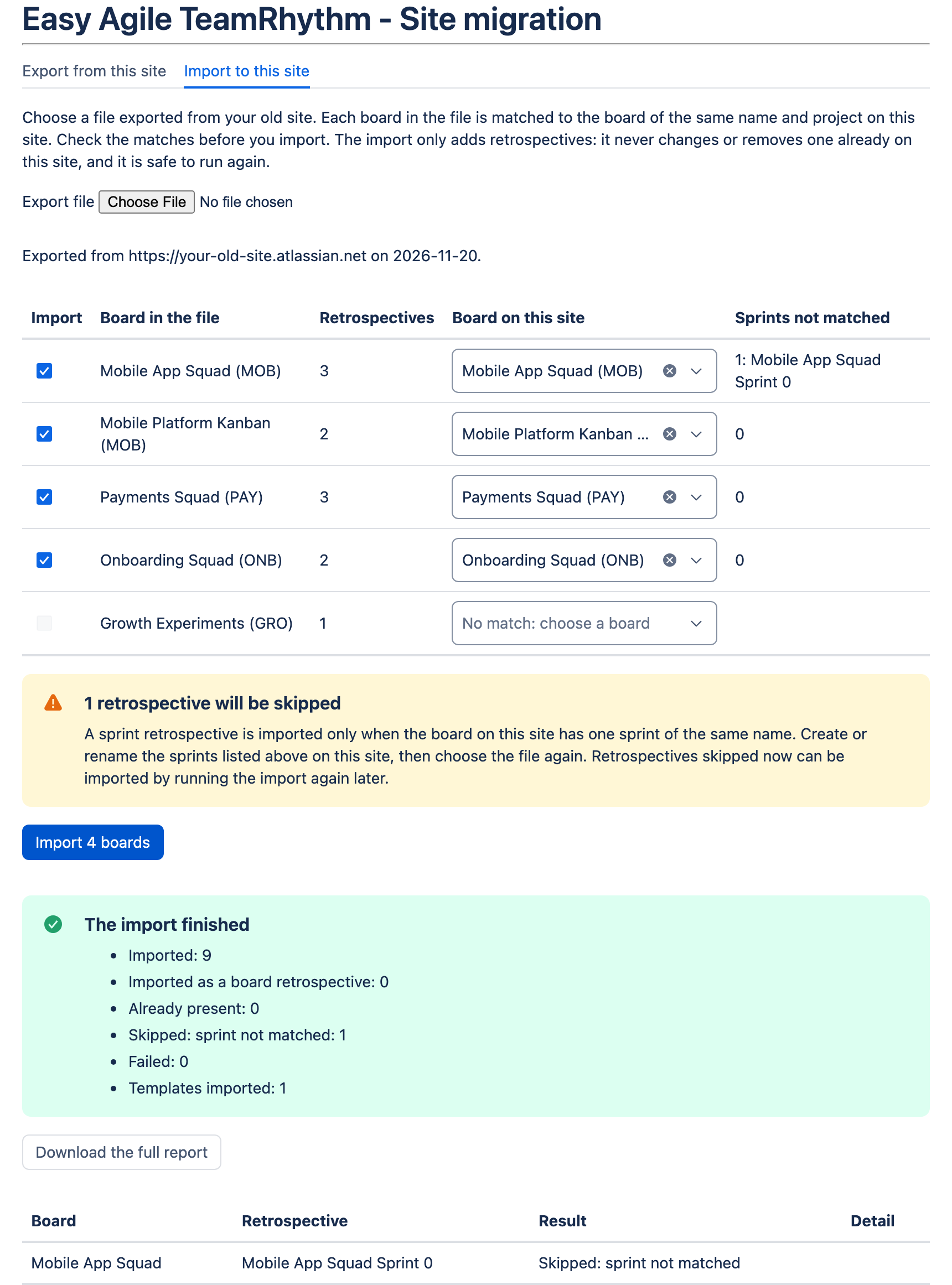
Check the table of boards. Each board in the file is matched to the board with the same name and project key on this site.
-
To change a match, select a different board in the Board on this site column.
-
If a board shows "No match: choose a board", select the board its retrospectives should go to, or leave it empty to skip that board.
-
To leave a matched board out, clear its checkbox in the Import column.
-
-
Check the Sprints not matched column. A sprint retrospective is imported only when the board on this site has a sprint with the same name. To include a retrospective listed here, create or rename the sprint on this site, then select the file again.
-
Select Import n boards. A confirmation lists each board in the file beside the board it will go to on this site.
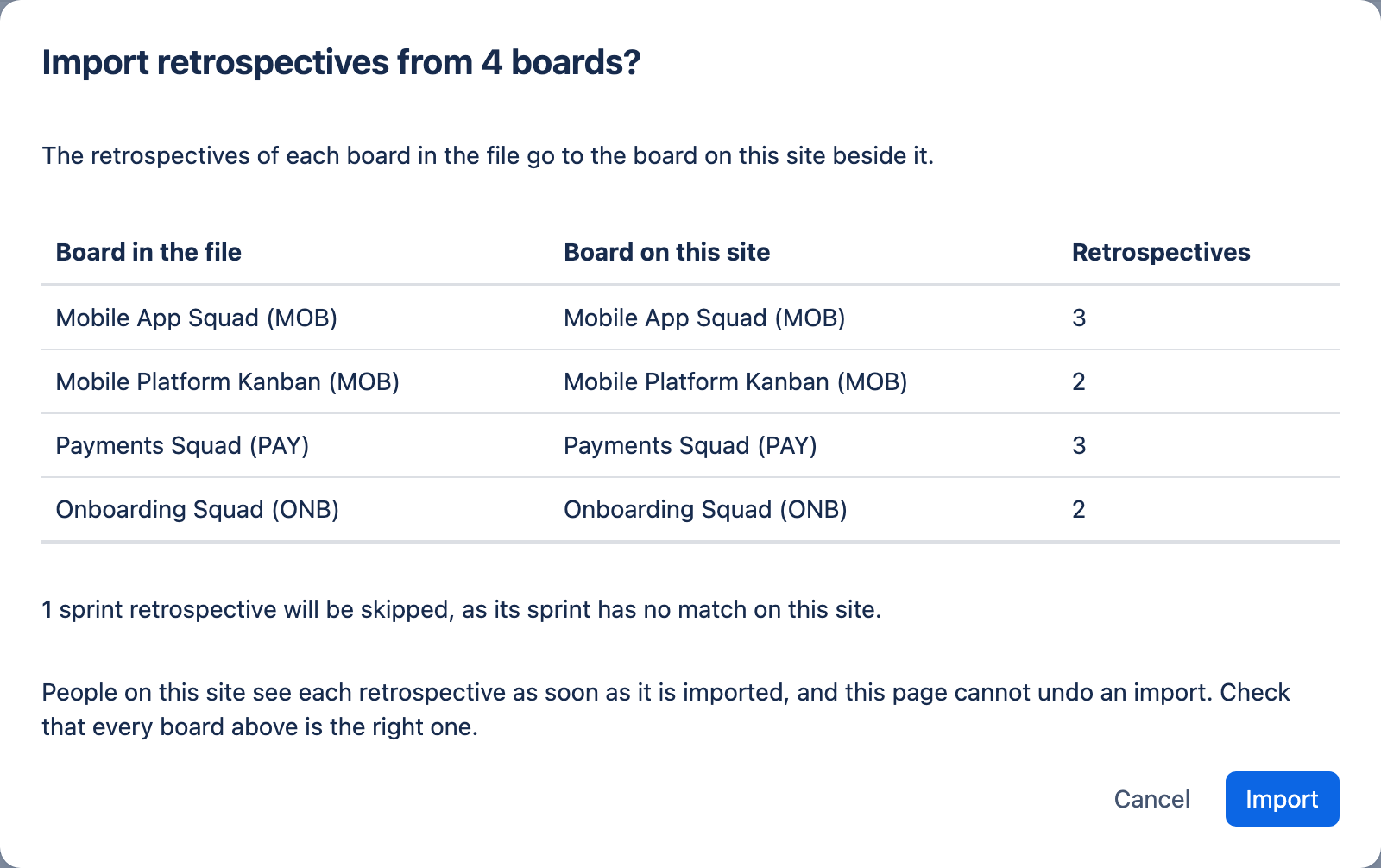
People on the new site see each retrospective as soon as it is imported, and the Site migration page cannot undo an import. Check that every board is matched to the right board before you confirm.
-
Select Import to confirm. Keep the browser tab open while the import runs.
-
When the import finishes, review the summary. Select Download the full report to save a CSV file listing the result for every retrospective.
Understanding the import results
|
Result |
What it means |
|---|---|
|
Imported |
The retrospective was added to the matched board, and to its sprint if it is a sprint retrospective. |
|
Imported as a board retrospective |
The matching sprint on this site already has a retrospective, so this one was added to the board without a sprint. |
|
Already present |
The retrospective was imported earlier, so it was left as it is. |
|
Skipped: sprint not matched |
The board on this site has no sprint with the same name. Create or rename the sprint, then run the import again. |
|
Failed |
The retrospective could not be imported. The Detail column gives the reason. Run the import again with the same file to retry. |
Running the import again
The import only adds retrospectives. It never changes or removes a retrospective that is already on the site, so it is safe to run again with the same file. Retrospectives that were skipped or failed are imported on a later run, and retrospectives that already arrived are left as they are.
Troubleshooting
A board has no match
A board is matched automatically only when exactly one board on the new site has the same name and project key. If the board was renamed, belongs to a different project, or shares its name with another board in that project, select the right board in the Board on this site column.
Sprint retrospectives are skipped
Sprint names must be the same on both sites. If two sprints on a board share a name, the sprint with the same start date is used. Rename or create the sprint on the new site, then select the export file again and run the import.
The export or import stops part way
The export and import run in your browser, so closing the tab stops them. Open the Site migration page and run the export or import again. Nothing is duplicated on the new site.
You see "This file is not a TeamRhythm export"
Select the .json file downloaded from the Export from this site tab. Files from other tools, and files that were edited after download, cannot be imported.
If you need help with your migration, contact the Easy Agile Support Team.