
Your subscription includes access to software updates. This includes security and bug fixes as well as new functionality.
Cloud App Updates
Easy Agile apps on Jira Cloud are updated through the Connected apps page in your Jira site settings. Some updates are applied automatically, but certain updates require a Jira Site or System Administrator to manually approve the change before it takes effect.
This page explains when manual approval is needed and how to apply updates to your Easy Agile apps on Jira Cloud.
How cloud app updates work
When Easy Agile releases a new version of a cloud app, the update is published to the Atlassian Marketplace. Your Jira Cloud site periodically checks the Marketplace for available updates.
Most updates are applied automatically, however, some updates require manual approval from a Jira Site or System Administrator before they can be applied. This happens when the app's permissions or scopes have changed (for example, the app needs access to additional Jira data to support new functionality).
Until the update is approved, your site will continue to run the previous version of the app.
When you need to manually approve an update
When an Easy Agile app update requires approval, Atlassian will send an email notification to product administrator. The app will also display an UPDATE badge next to its name on the Connected apps page.
You'll need to review and approve the update to receive the latest version of the app, including new features, improvements, and security fixes.
How to manually update an Easy Agile cloud app
To approve and apply a pending update:
Step 1. Log into your Jira Cloud site as a user with administrative privileges.
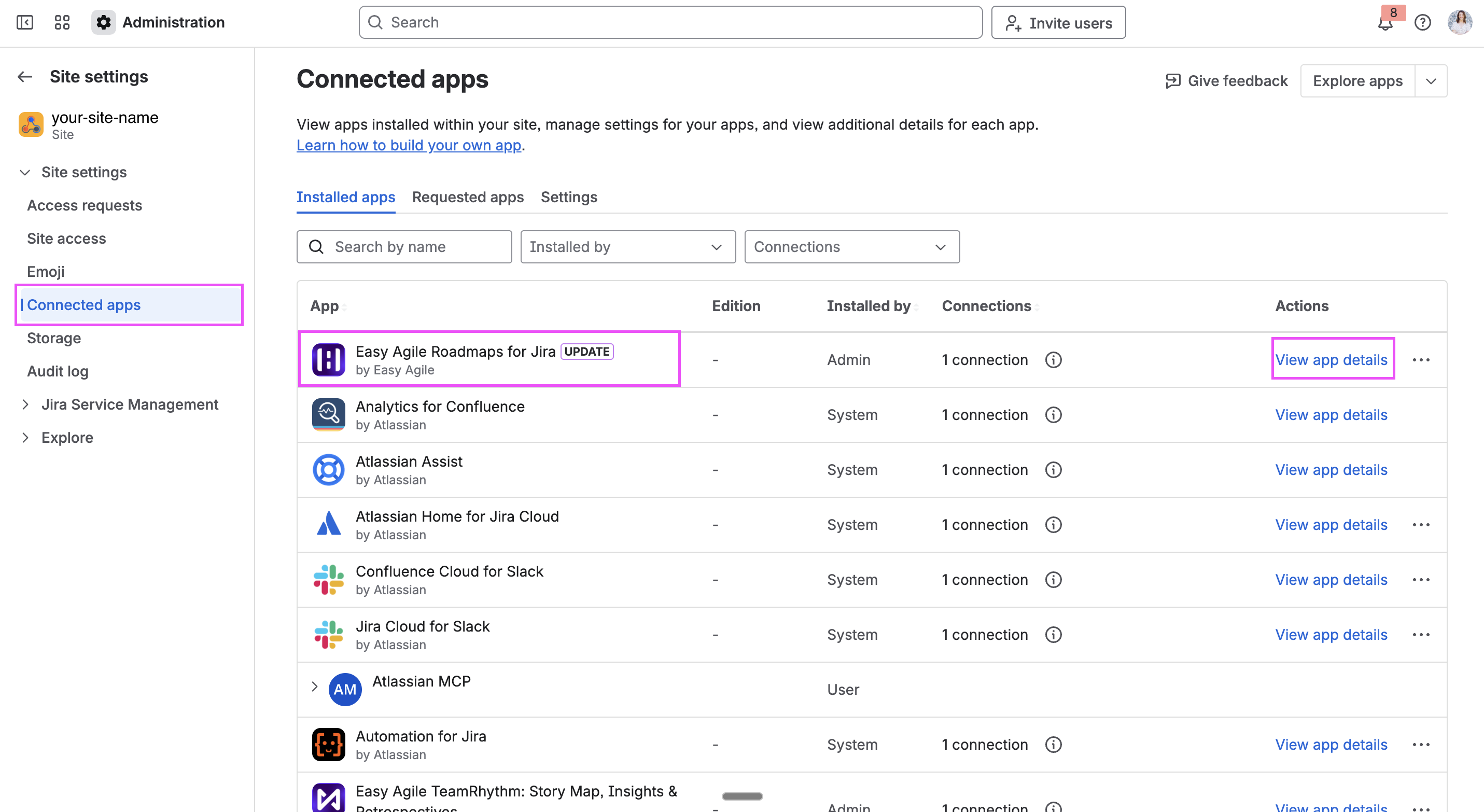
Step 2. Navigate to Site settings > Connected apps in the left-hand sidebar.
Apps with a pending update will display an UPDATE badge next to the app name. In the example below, Easy Agile Roadmaps for Jira has an update available. Click View app details to open the app's detail page.
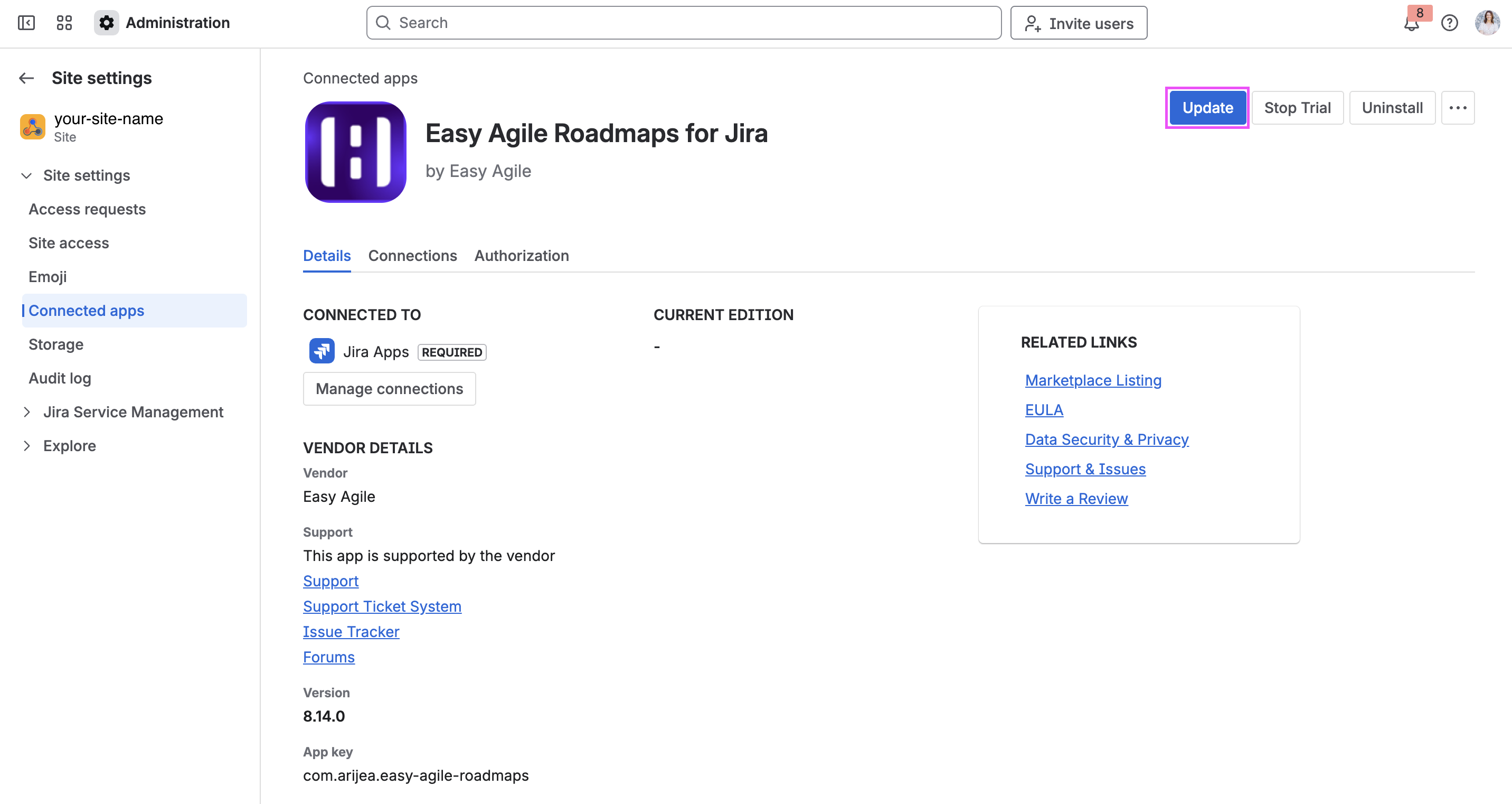
Step 3. On the app details page, click the Update button in the top-right corner.
This page also shows useful information about the app, including the current version number, vendor details, and related links to the Marketplace listing, EULA, and support resources.
Step 4. A Confirm app update dialog will appear. This dialog shows you any new or changed permissions that the updated version of the app requires.
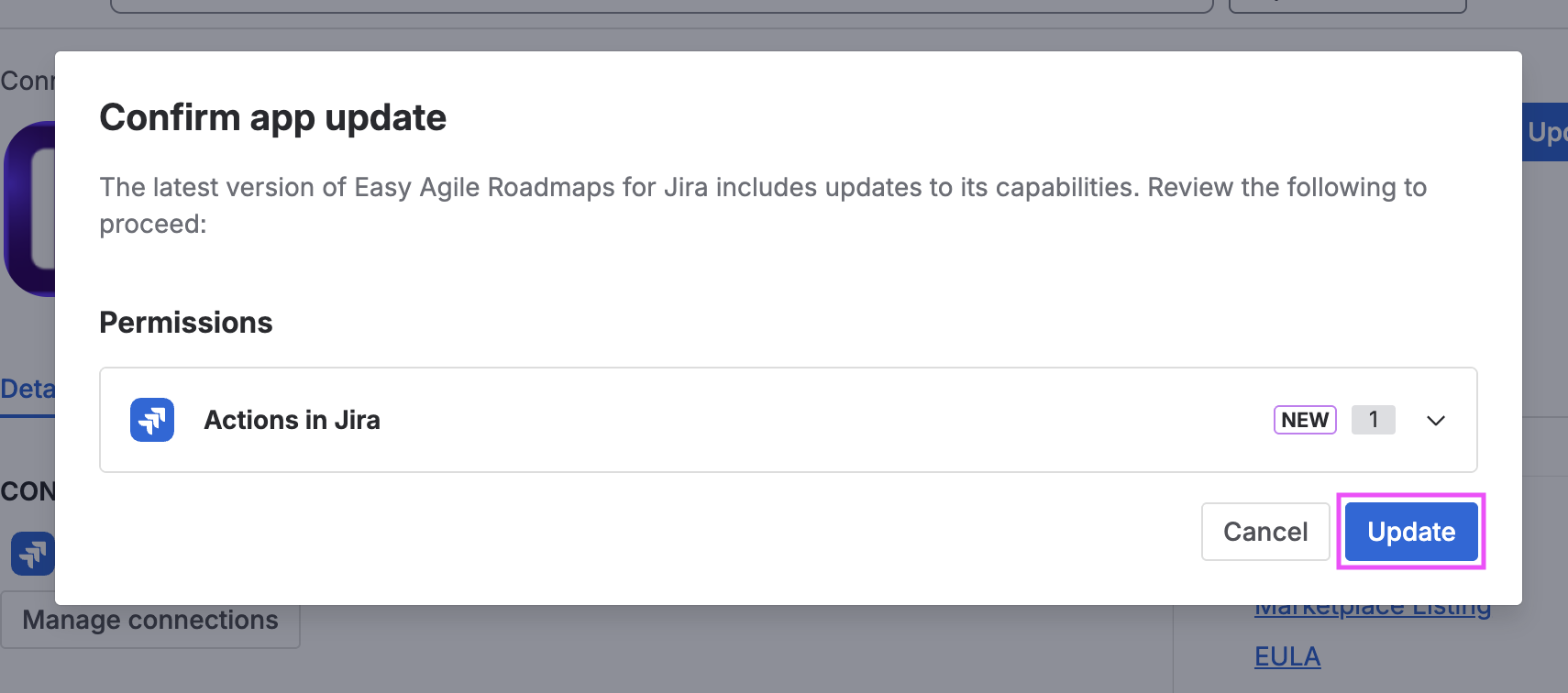
Review the permissions listed in the dialog carefully. Each permission change will be marked as NEW if it is a scope that the app did not previously require. You can expand each permission using the dropdown arrow to see more detail about what the scope allows.
Once you are satisfied with the permission changes, click the Update button to confirm and apply the update.
Step 5. The update will download and install. When finished, the app details page will reflect the new version number, confirming the update was successful.
Checking your current Cloud app version
To see which version of an Easy Agile app is currently installed on your Jira Cloud site:
-
Navigate to Site settings > Connected apps.
-
Click View app details next to the Easy Agile app.
-
The current Version number is displayed under the Vendor details section on the app details page.
Data Center App Updates
On Data Center, Jira Administrators can update the app on the “Manage apps” page in Jira.
-
Check if the app is compatible with your version of Jira before installing.
-
The “Version history” page on the Atlassian Marketplace listing shows the details of each version, including Jira version compatibility. Use the “Explore all Data Center versions” link at the bottom right-hand side of the page to go to Version history.
-
Ensuring your data's safety is our top priority. We recommend making a database backup before updating for added peace of mind.
Data Center / Server app version history
Jump to the “Version history” page on the Atlassian Marketplace for each app with these links:
This shows the release date, version compatibility, and release notes for each version.