
Why Use Filtering?
Delivery Insights allows you to customise the analysis to focus on specific time periods and work item types. This helps you gain deeper insights into particular aspects of your teams delivery.
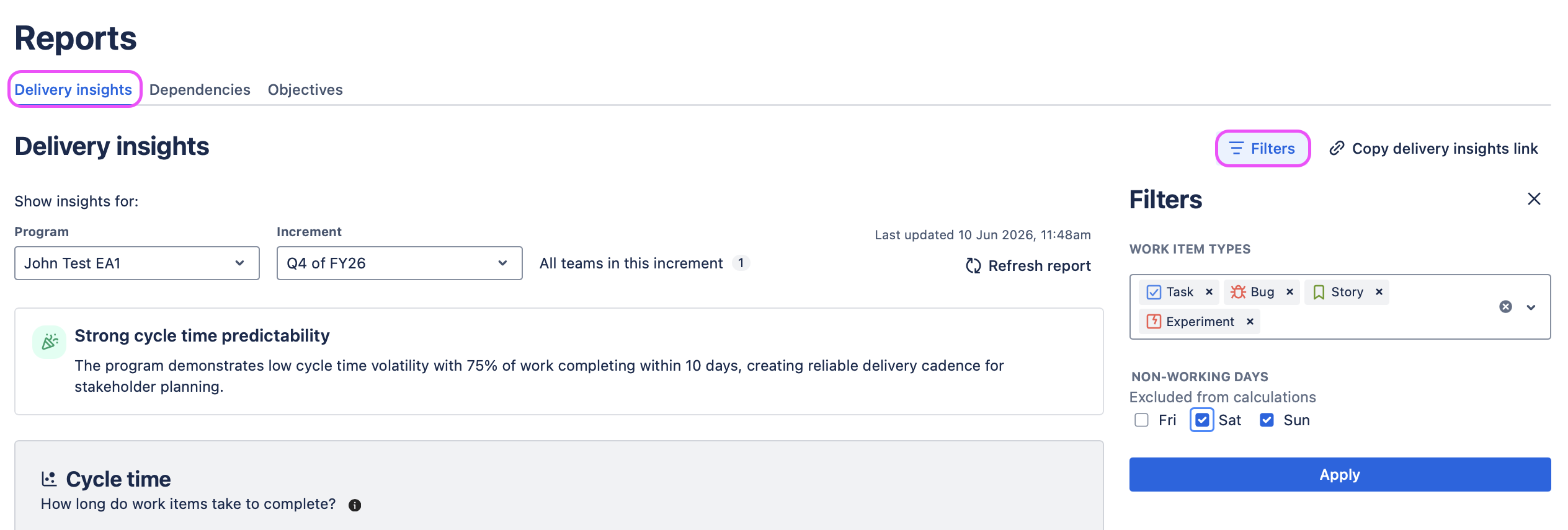
Accessing Filters
To access the filtering options:
-
Navigate to the Reports tab
-
Click on the Delivery Insights sub tab.
-
Click the Filters button in the top right corner of the page
-
The filter panel will open on the right side
The filters button displays the number of active filters (e.g. "Filters / 4" means four filters are currently applied).

Excluding non-working days from the Delivery insights
The Non-working Days filter lets you customise your Delivery Insights report to include or exclude weekends based on your operational needs.
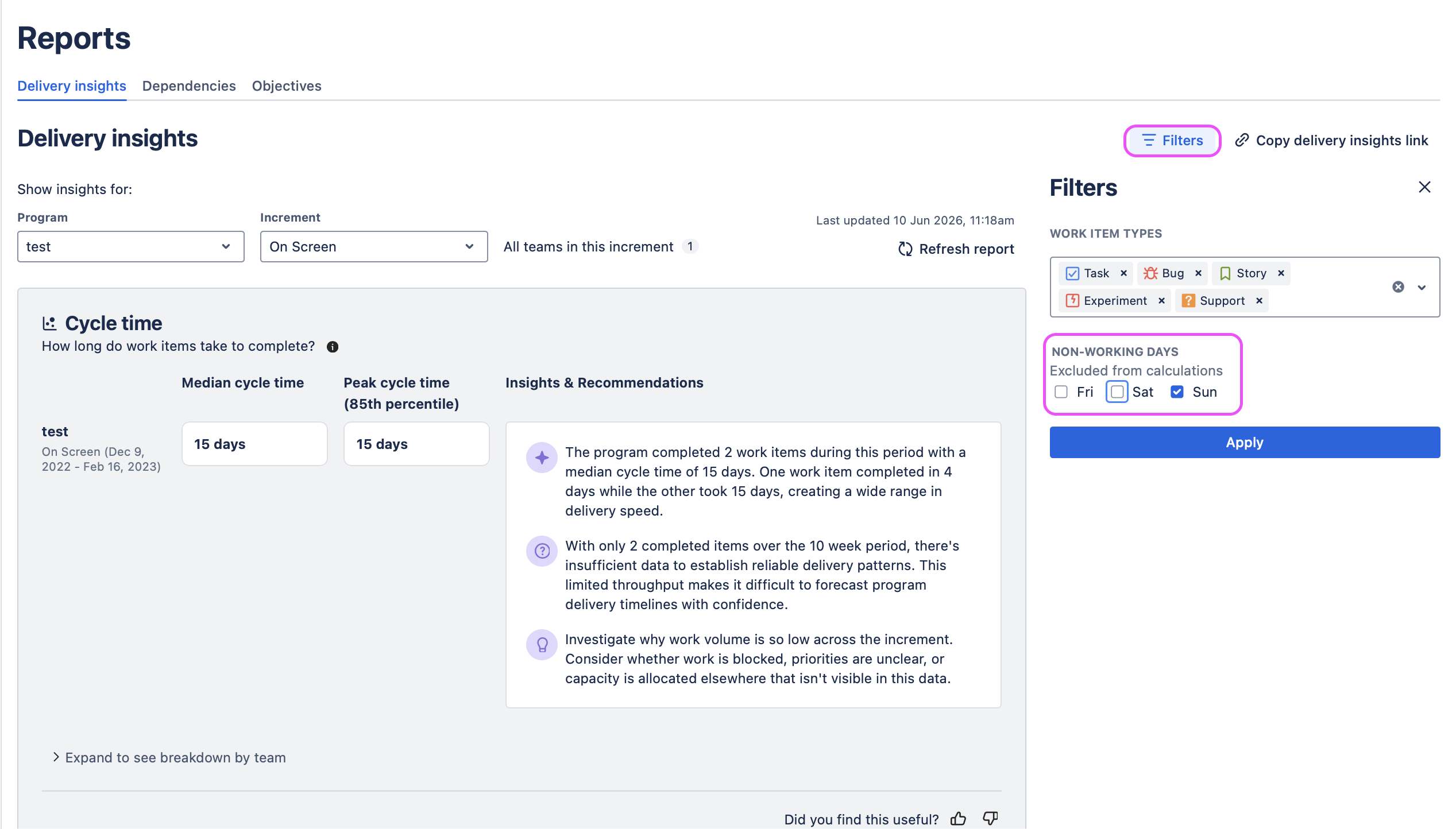
How to exclude non-working days from Delivery insights report
-
In the Filters panel, locate the Non-working Days section
-
Select any non-working days that you want to exclude from the calculations (i.e Friday; Saturday; Sunday) by clicking on them. Multiple choices is available.
-
Click Apply to refresh the report.
Work Item Types
The Work Item Types filter allows you to focus the analysis on specific types of level 0 work items, such as Tasks, Bugs, Stories, Feature Requests, Experiments, or Support tickets.
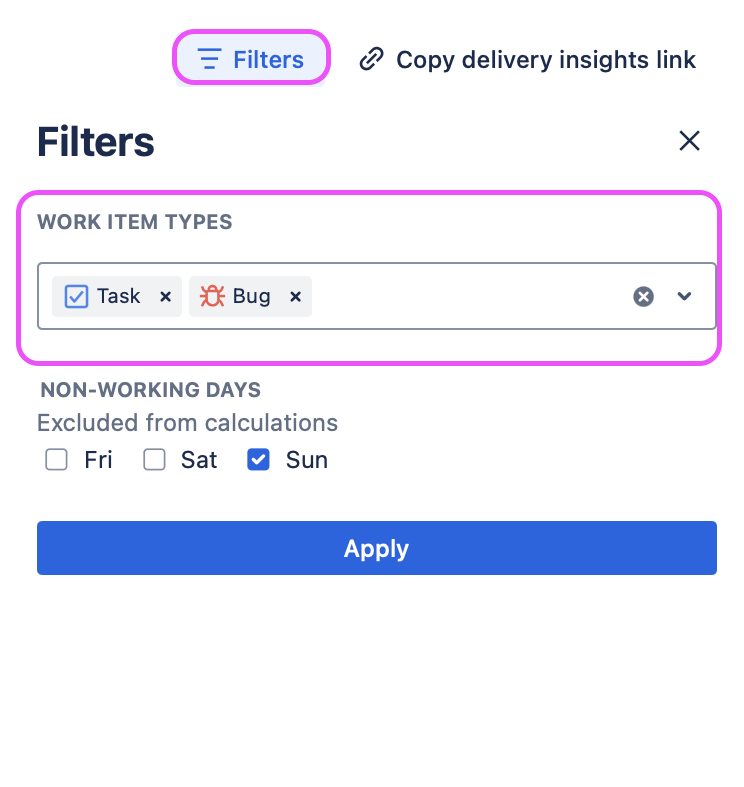
How to Filter by Work Item Type
-
In the Filters panel, locate the Work Item Types section
-
By default, all level zero work item types (Task, Bug, Story,etc) relevant to the boards in the program are selected.
-
Click the X next to any work item type to remove it from the filter.
-
Click the dropdown arrow or clear button to see all available work item types.
-
Select additional work item types by clicking on them.
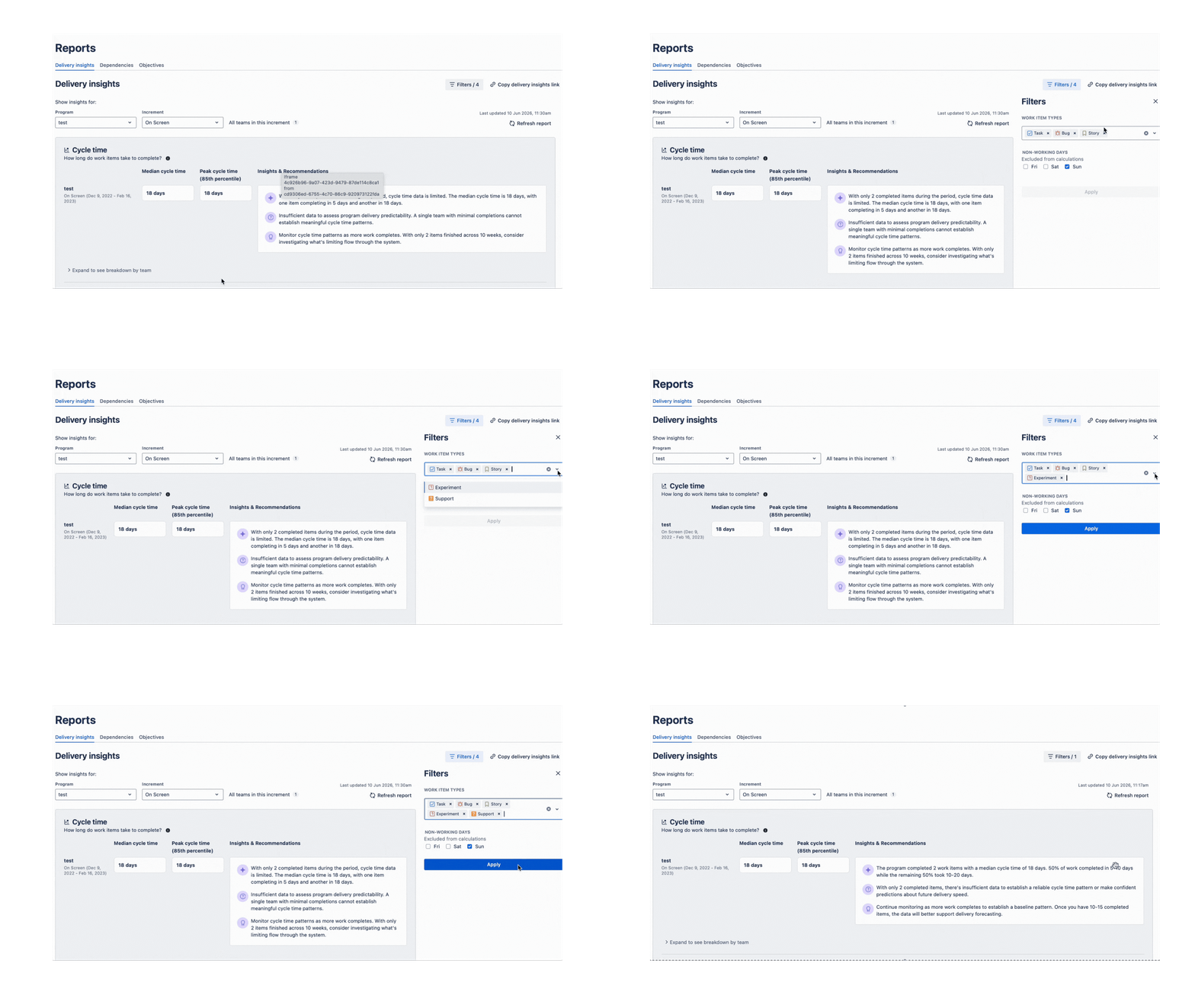
Available Work Item Types
The available work item types depend on your Jira configuration. Common options include:
-
Task (✓ checkbox icon)
-
Bug (🐞 bug icon)
-
Story (📑 bookmark icon)
Why Filter by Work Item Type
Filtering by work item type allows you to:
-
Compare performance across types: See if bugs are taking longer than stories
-
Focus on specific work: Analyse only feature development or only bug fixes
-
Identify patterns: Understand if certain types of work have consistent bottlenecks
-
Tailor retrospectives: Focus discussions on specific types of work
Example scenarios:
-
Filter to only Bugs to analyse your team's defect resolution process
-
Filter to Stories to understand feature delivery cycle time
-
Combine Task and Story to exclude bugs from your main flow analysis
-
Select only Feature Request to review how customer-requested features are progressing.
Applying Filters
Once you've selected your desired filters:
-
Review your selections in the filter panel
-
Click the Apply button at the bottom of the filter panel
-
Delivery Insights will refresh with the new filter criteria
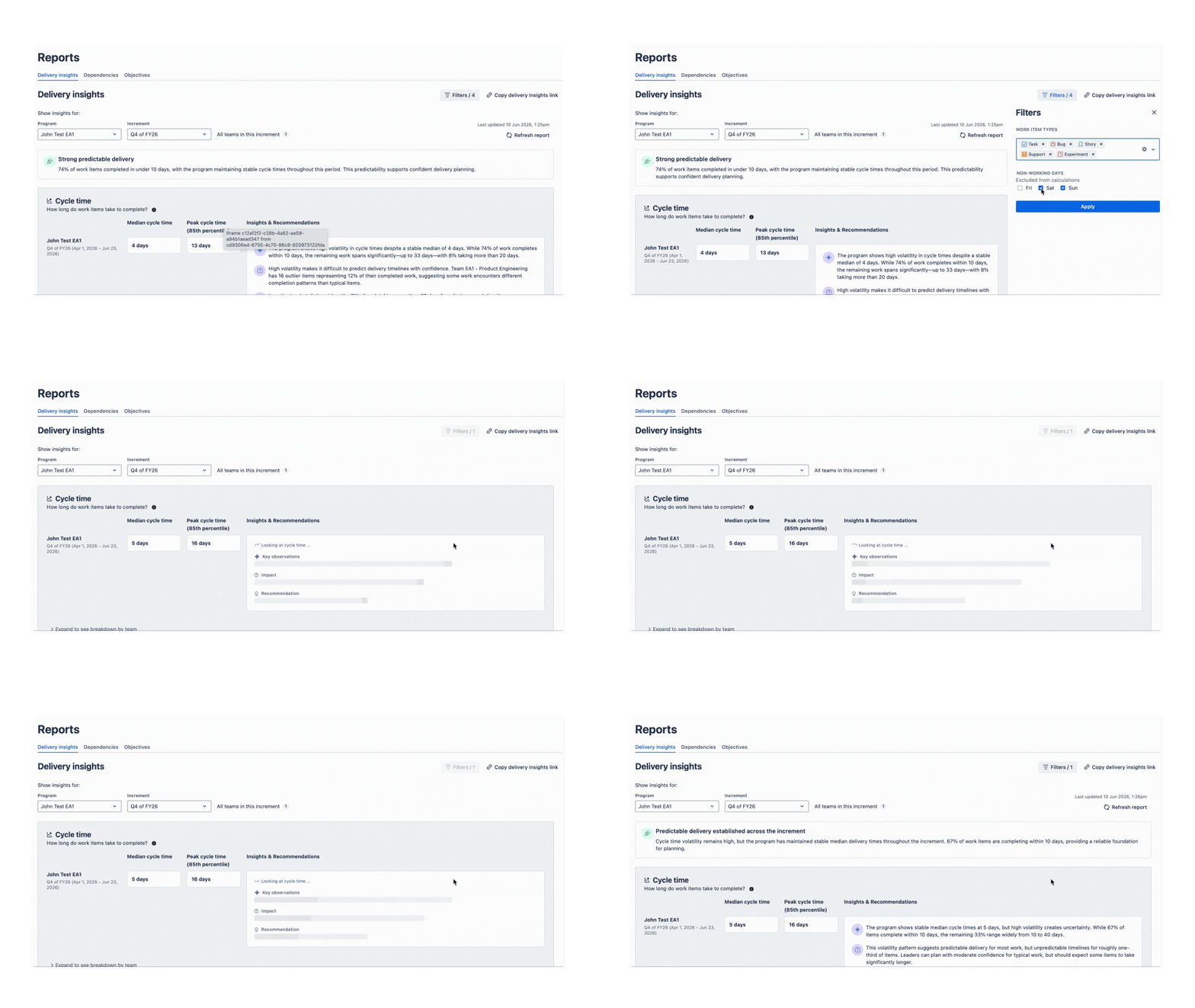
The page will reload and regenerate insights based on your filtered selection. This may take a few moments as the analysis is recalculated.
Understanding Filtered Results
When filters are applied:
-
The filter count is displayed on the Filters button (e.g. "Filters / 3")
-
All charts update to show only the filtered data
-
All insights and recommendations are recalculated based on the filtered dataset
-
Work item keys mentioned in insights will only include items matching your filter criteria
Impact on Charts
Each chart responds to your filter selections:
-
Cycle time: Shows only work items of the selected types completed in the selected increment period.
-
Throughput: Displays completion rates for only the filtered work item types.
-
Work in progress (WIP): Shows work in progress for only the selected types.
Filter limitations
-
Filters apply to the entire Delivery Insights view and cannot be set differently for individual sections
-
Filtering to very small datasets (e.g. only 2-3 completed items) may result in limited or less meaningful insights
-
Custom fields and labels are not currently supported as filter options