
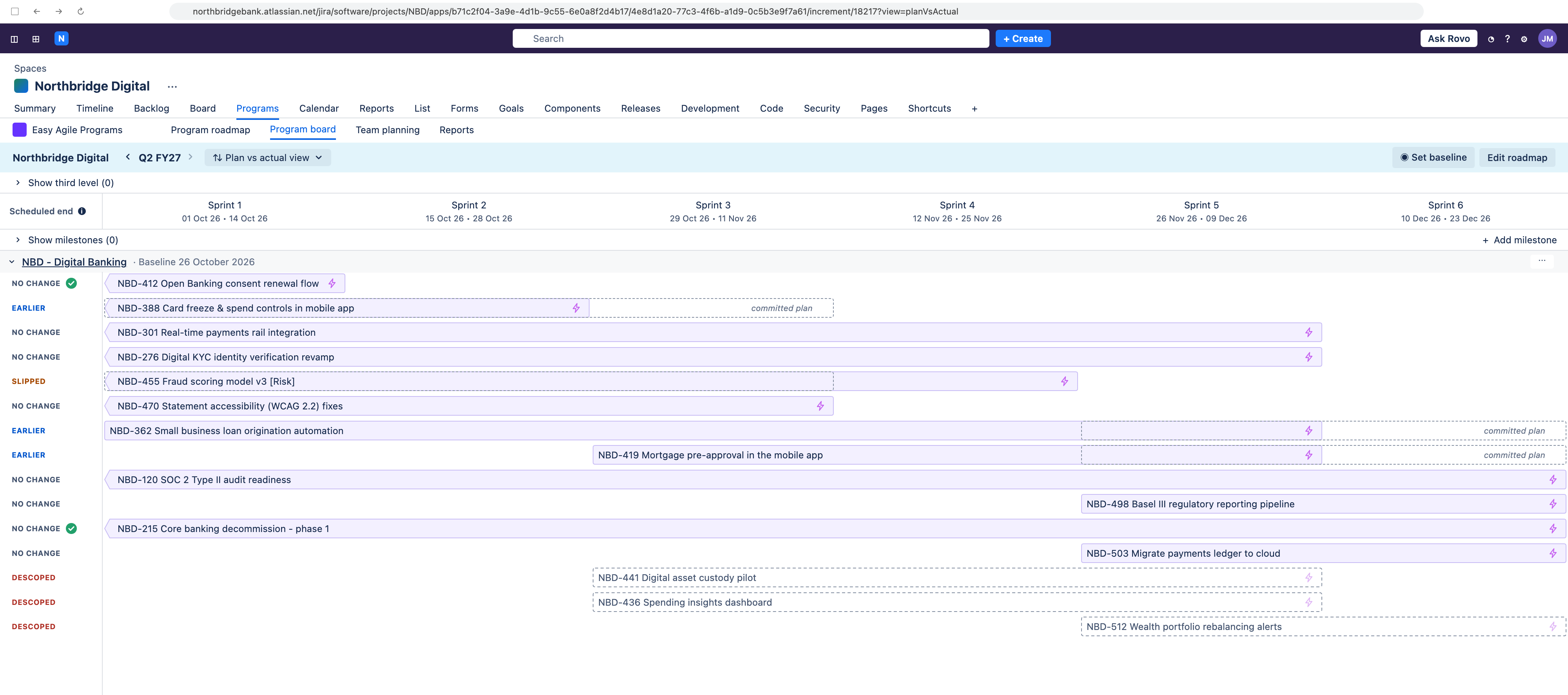
The Plan vs actual view on the Program board shows how each team's roadmap items are tracking against the plan they committed to.
Set a baseline once planning is done, then use this snapshot to see what has slipped, what's finishing earlier, what's been added, and what's been descoped, team by team.
The Plan vs actual view is in Early Access and is available on Jira Cloud only.
It will be available to Jira Data Center customers with the next release, planned for November 2026.
How statuses are worked out
Each roadmap item is given a scheduled end status based on the baseline and its current position on the Program board.
The status is derived from the (sprint) column the roadmap item is scheduled to end in within the app. When you set a baseline, Easy Agile Programs records the end sprint of every roadmap item on the team's board for that increment. From then on, it compares each item's current end sprint with the one it recorded.
Things to know:
-
Moving a roadmap item's end date to another day in the same sprint doesn't change its status.
-
Changing the start date doesn't change the status, even if the item now starts in a different sprint.
-
Dates on child work items aren't used. Only the roadmap item's own scheduled position on the Program board counts.
-
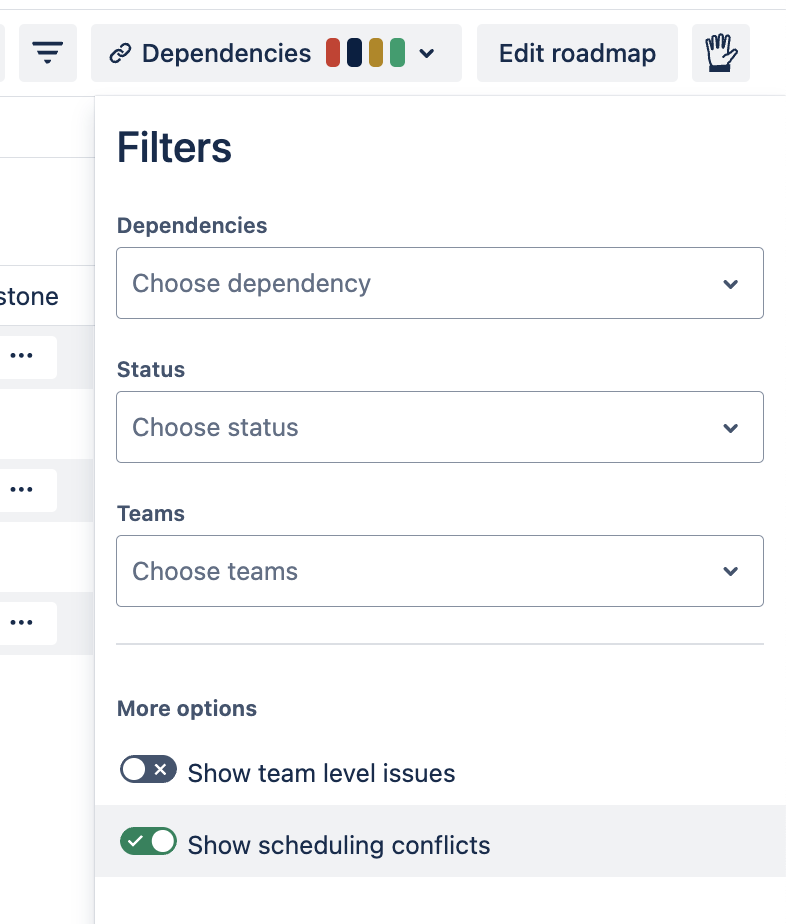
Turn on scheduling conflicts, using the Filters menu, to see when child work items are scheduled in a sprint after the roadmap item is due to finish.
-
-
The status isn't affected by the item's Jira status. A roadmap item can be Done and still show as Slipped if it finished in a later sprint than planned.
-
If the roadmap item started before or ended after the increment and the dates change outside the increment boundaries, there will be no status change for the item within this increment
Status definitions
|
Scheduled end date statuses |
|
|
Slipped |
The roadmap item now ends in a later sprint than it did when the baseline was set. If an item was due to end inside the increment and is now scheduled to end after it, the status will be shown as Slipped. |
|
Earlier |
The roadmap item now ends in an earlier sprint than it did when the baseline was set. If an item was due to end after the increment and is now scheduled to end inside it, the status will be shown as Earlier. |
|
No change |
The roadmap item ends in the same sprint as it did when the baseline was set. This includes:
|
|
Added |
The roadmap item wasn't on this team's board when the baseline was set. This covers items that were:
|
|
Descoped |
The roadmap item was on this team's board when the baseline was set and has since been removed. This covers items moved to the backlog, unscheduled, or moved to another team. Descoped items stay listed in the Plan vs actual view so you can see what’s been removed from the plan. They don't appear in the Live view. Items that have been deleted, or that you no longer have permission to see in Jira, drop out of the view altogether. |
Other indicators on the Plan vs actual view
Two indicators can appear on the Plan vs actual view that do not impact the status itself.
Done icon
A tick appears next to the status when the roadmap item is in a Done status category in Jira. It shows that the item has been completed. When an item moves to Done it will still show the most recent scheduled end date status.
⚠️ Scheduling conflict warning
A warning appears at the end of the roadmap item on the timeline when one or more of its child work items are scheduled in a sprint after the roadmap item is due to finish. The warning uses the live child work items, not the baseline, so it can appear or clear at any time without the status changing.
Click the warning to open a dialog where you can reschedule the roadmap item to match its child work items. Rescheduling changes the roadmap item's end sprint, so its status may change - often to Slipped.
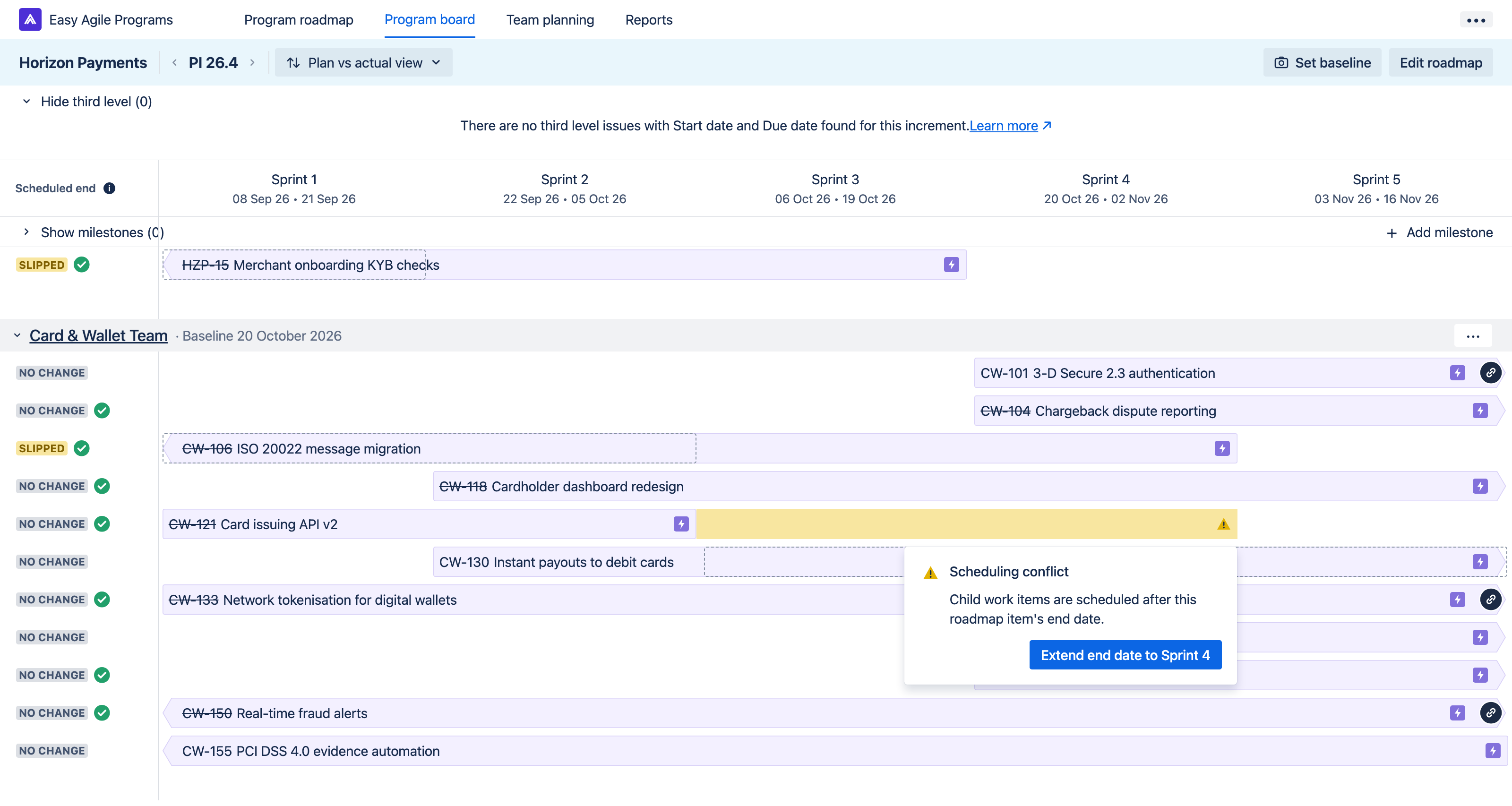
To show these warnings, make sure scheduling conflicts is turned on in the Filters menu.
Setting a baseline
A baseline is a snapshot of where each roadmap item is scheduled during planning. The Plan vs actual view compares the current position of each roadmap item with this snapshot.
Baselines are set manually. Easy Agile Programs doesn't automatically set one for you, so set it once planning is done - ideally before the increment starts.

Who can set a baseline
Jira Administrators or anyone with the Manage Programs permission can set or update a baseline for any team in the Program.
How to set a baseline
You can set a baseline for any team, at any time within a current or future increment.
You can set a baseline from the toolbar on the Program board's Live view or Plan vs actual view, or from the empty state message on the Plan vs actual view.

-
On the Program board, open the Live view or the Plan vs actual view
-
Select Set baseline in the toolbar
-
Select the teams you want to set a baseline for
-
Select Set baseline to confirm
Teams that already have a baseline show the date it was set. Each team's baseline date is also shown in its swimlane on the Plan vs actual view.
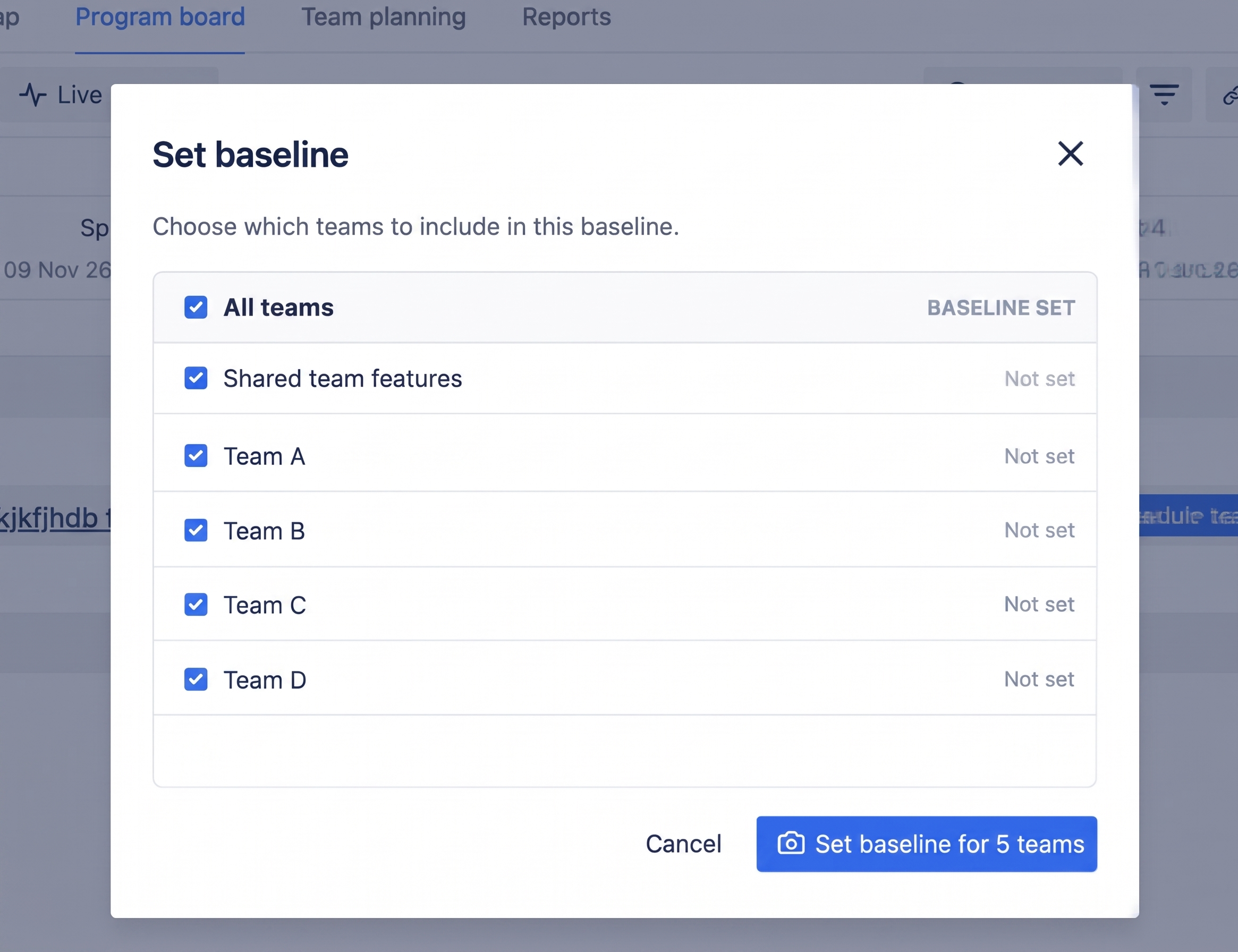
How to update a baseline
You can update the baseline for any team, at any time within a current or future increment.
To update a baseline, follow the same process as when you originally set the baseline. The new snapshot replaces the old one, and every roadmap item for that team will be shown as NO CHANGE until something moves after the new baseline date. Roadmap items that were DESCOPED disappear from the view, because they aren't on the board when the new snapshot is taken.
Updating a baseline can't be undone. Easy Agile Programs keeps one baseline per team per increment, so there's no way to go back to an earlier one.