
Save a retrospective's setup as a Team Template so your team can reuse it in the future.
A Team Template stores the structure of a retrospective: the column count, headings and descriptions, colours, Actions column preference and whether the mood survey is on or off. The privacy setting and participants for a private retrospective are not saved.
Available on Jira Cloud and Data Center v15.7.0+ (Jira 9/10), v16.7.0+ (Jira 11).
This page is about templates created by your team. For more details on built-in templates, see Retrospective templates.
Saving a retrospective setup as a template
You can save a Team Template when creating or editing a retrospective by selecting Save as a template.
Enter a Template name and choose the template's Availability (this board or all boards) before creating or saving the retrospective.
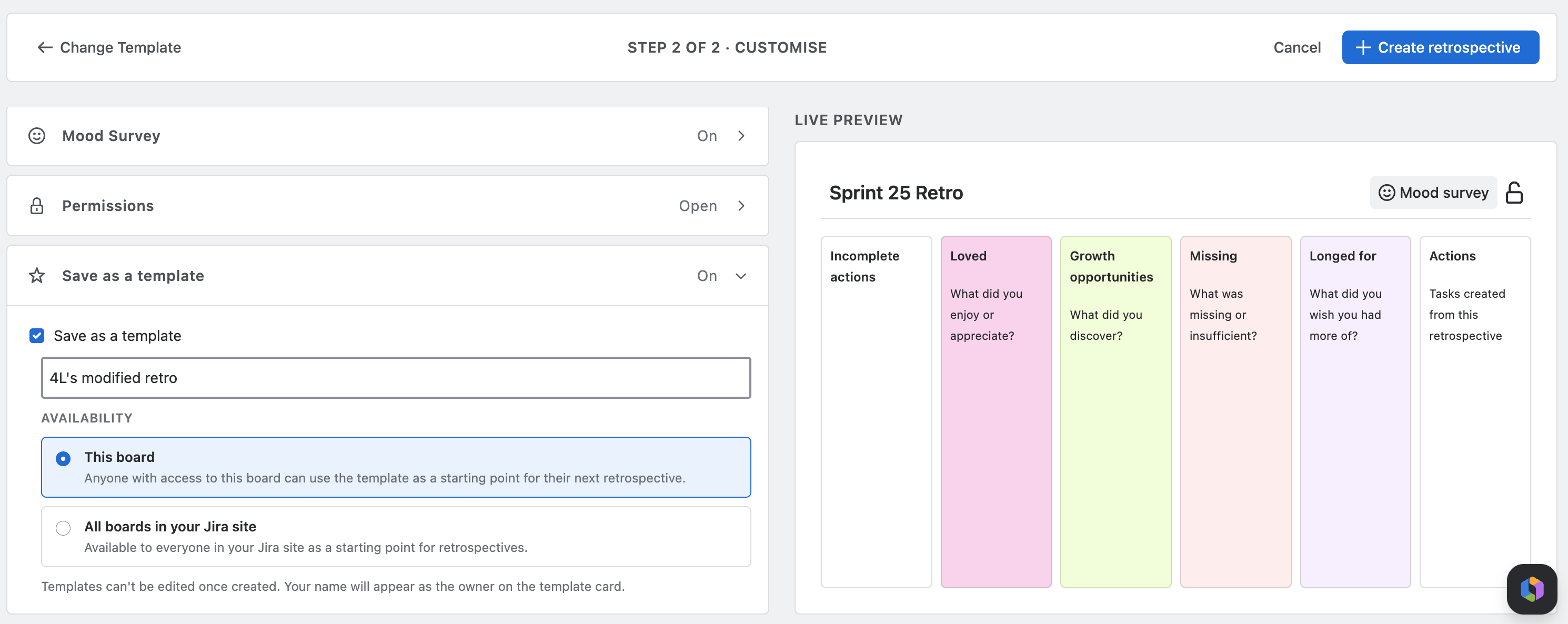
The template will then appear in the Team Templates tab of the gallery straight away.
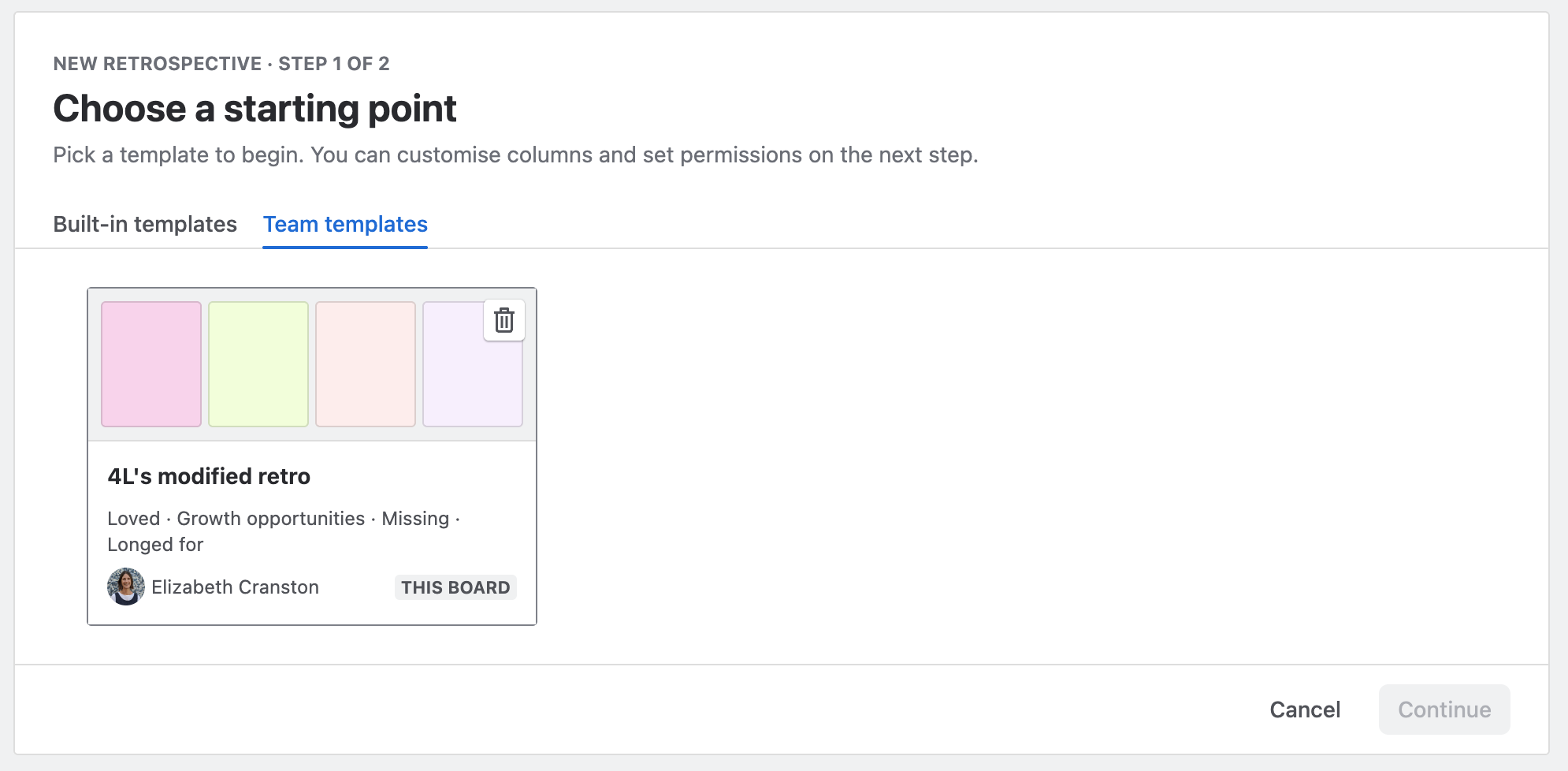
The Save as a template checkbox clears each time you open the setup screen. Editing a retrospective that was saved as a template won't update the template.
Choosing availability
When saving a Team Template, you can control who can find, use and delete your template.
-
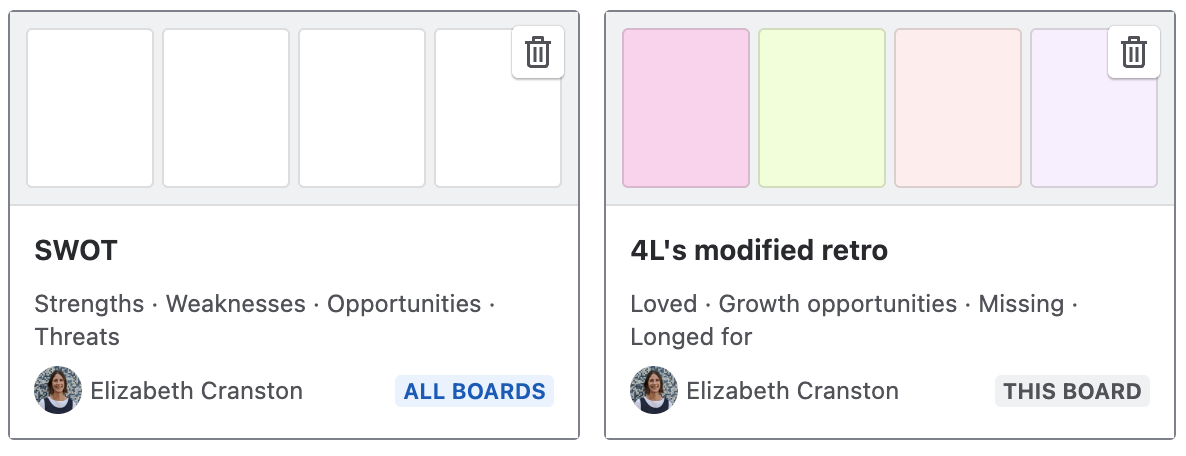
This board - anyone with access to your board can use or delete the template. A board-only template is restricted to the board that saved it, and won't appear for any other board.
-
All boards in this Jira site - available to everyone in your Jira site.
What gets saved
Saved in the template:
-
Columns, including their headings, descriptions, colours, and order
-
The Actions column setting
-
The Incomplete actions setting
-
Whether the mood survey is on or off
Not saved:
-
The name of retrospective used to create the template
-
Retrospective items, comments, groups and actions
-
Participants and permissions - participants aren't stored for a private retrospective so that there are no access restrictions when reusing the template.
Using a Team Template
To use a Team Template, go to the Team Templates tab when creating or editing your retrospective. The Team Templates are ordered from newest to oldest based on their creation date.
There's no search, sorting, or filtering yet. If you'd find that useful as your list grows, send a request through to our Product team.
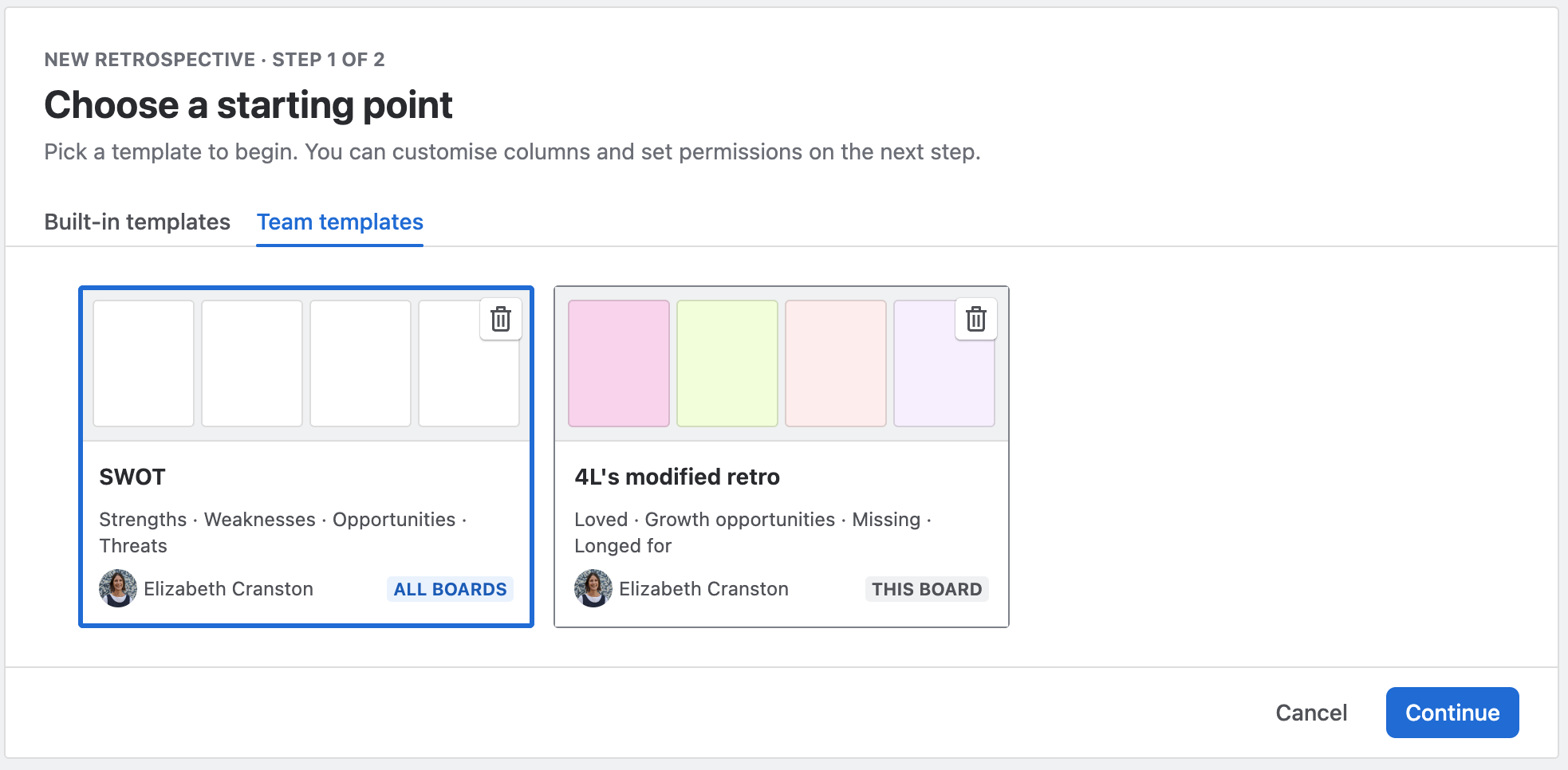
Changing the template on an existing retrospective works the same way for Team Templates as it does for built-in ones. Your existing columns are renamed to match the template rather than replaced, and items stay where they are. A column can't be deleted while it still contains items. If you switch to a template with fewer columns, the extra columns stay on the board - drag the retrospective cards into another column, then delete the extra column(s) from Edit setup.
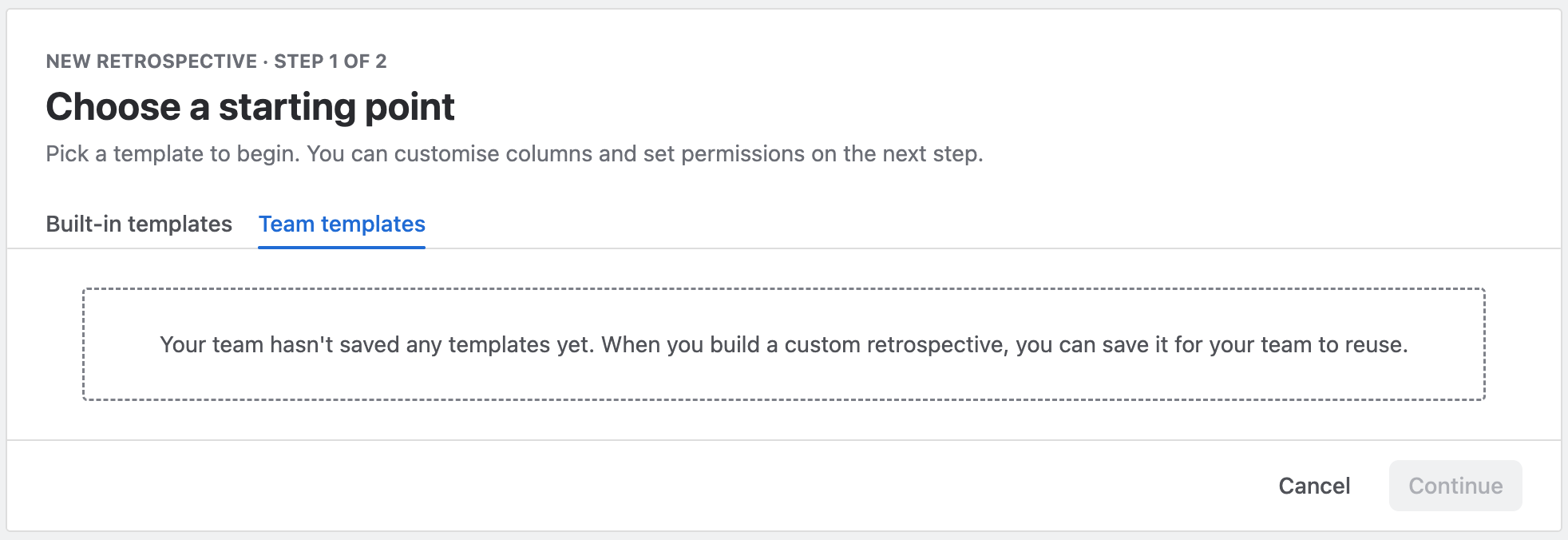
Editing a Team Template
Templates can't be edited or renamed once they're saved. To change one, set up a retrospective the way you want it, save it as a new template, and delete the old one.
Deleting a Team Template
Anyone who can see a template can delete it, including templates saved by other boards and shared across the site ALL BOARDS . There's no separate permission for this action.
Retrospectives already created from a template aren't impacted when the template is deleted. They keep the columns and setup they were created with.
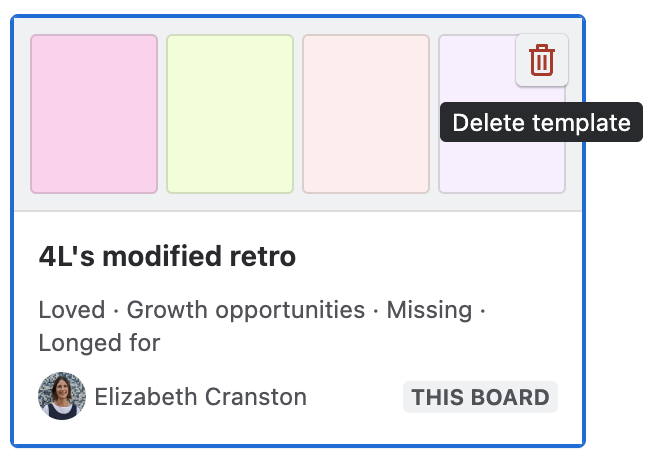
Click on the bin icon to delete a Team Template.
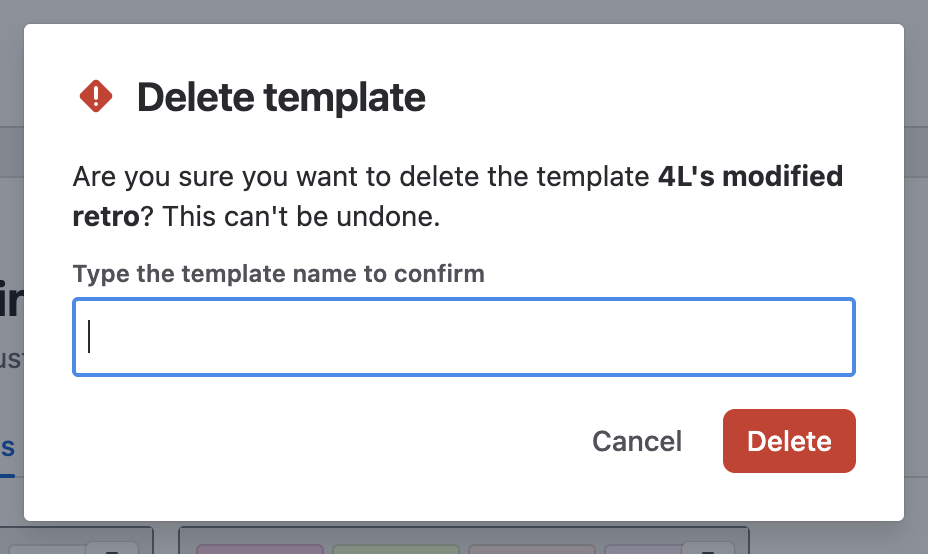
To confirm, type the template name exactly as it appears. This makes it harder to delete the wrong template by accident.
Deleting a template can't be undone, and anyone can delete any template they can see. Templates can share the same name, so check you've selected the right template before deleting.