
The Easy Agile TeamRhythm app adds a Retrospective page for each Jira board in Software projects. This allows you to run Retrospectives in-context, right next to your work in Jira.
Learn more about navigating to the Retrospective page from your Jira board.
On a Scrum board
Easy Agile will automatically create a retrospective when the sprint is started. The Retrospective will be named after the sprint.
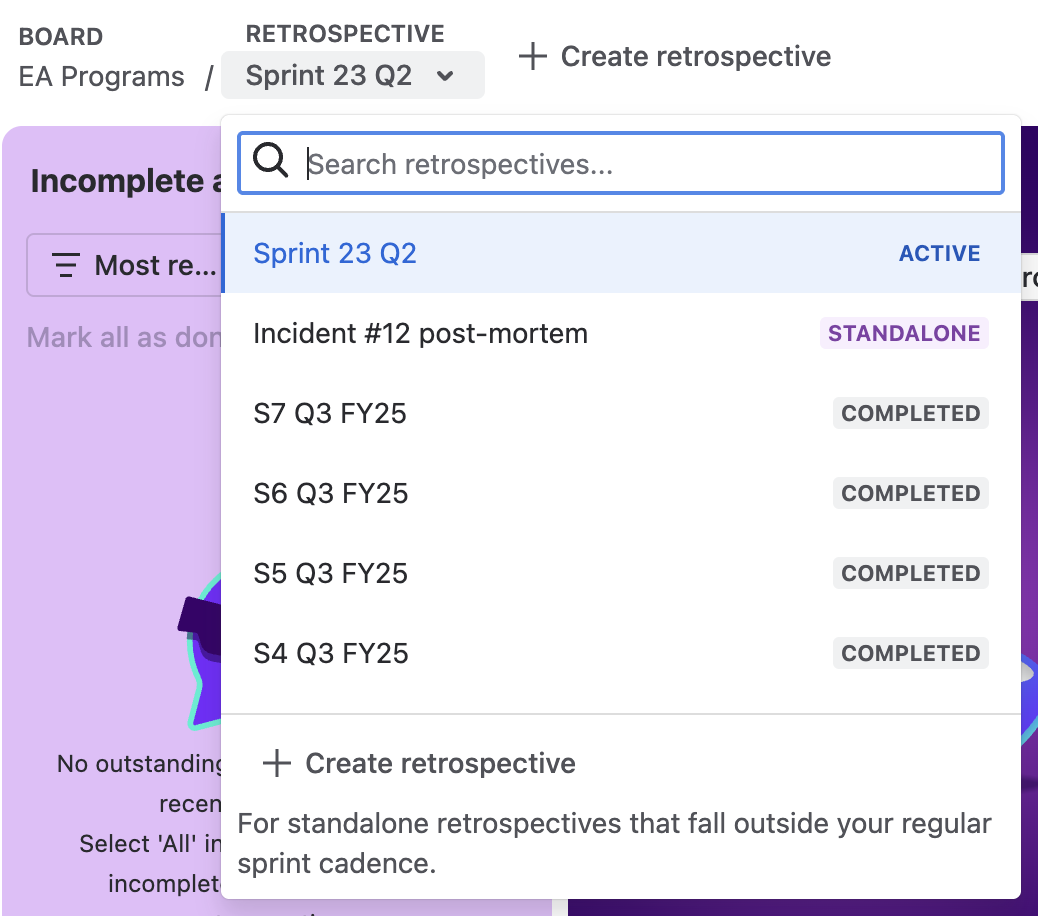
Use the retrospective dropdown in the left hand side of the tool bar to see the list of:
-
all Retrospectives for any active or completed sprint on your Jira board
-
all standalone Retrospectives created for adhoc events
By default, the Retrospective page will open on the Retrospective for the active sprint, or the most recent completed sprint if there is no active sprint.
[Jira Cloud only] Team-managed projects can use sprint Retrospectives when Sprints are enabled in the project.
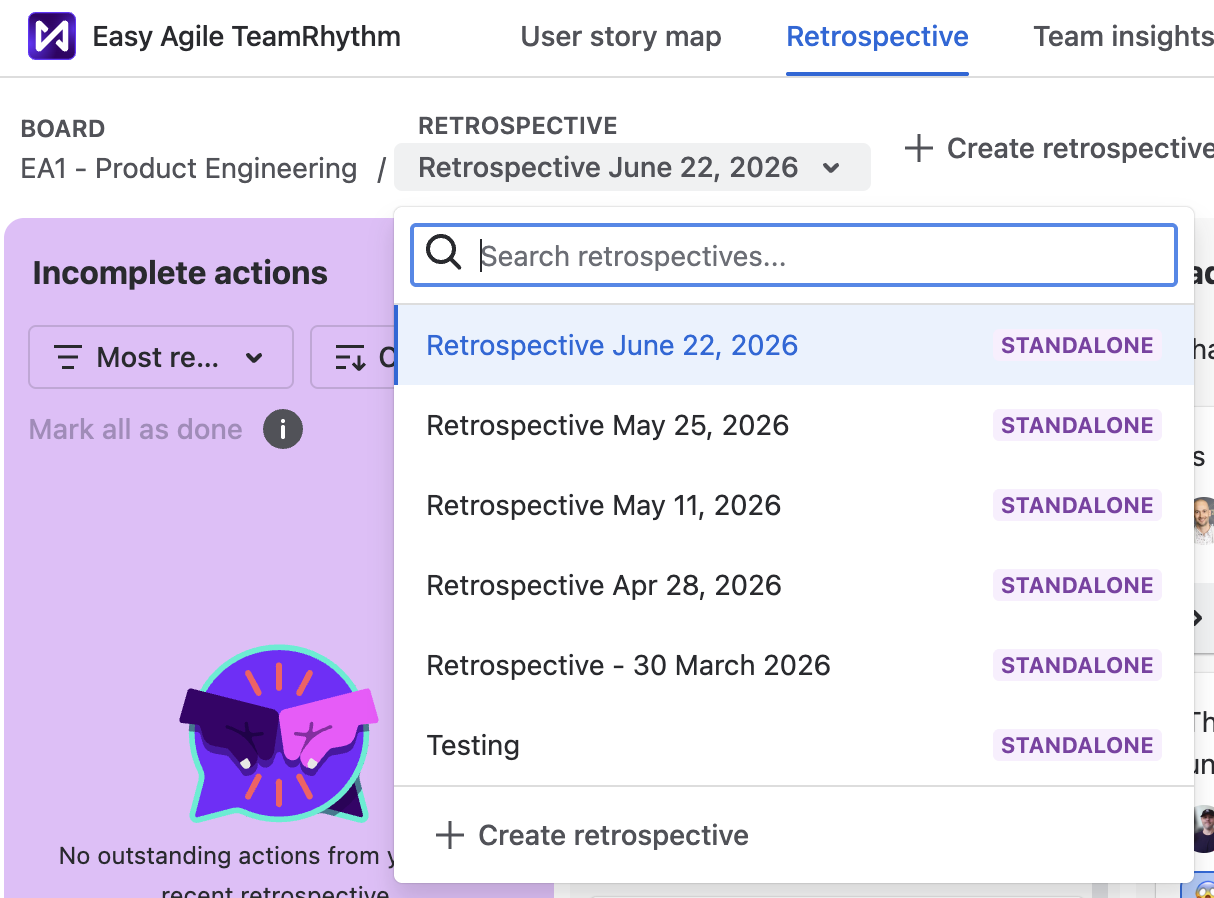
On a Kanban board, you can create Retrospectives as needed.
Opening the Retrospective for a sprint from the User story map
When sprint swimlanes are enabled on the User story map, the “Retrospective” button will appear on the right-hand end of the swimlane:
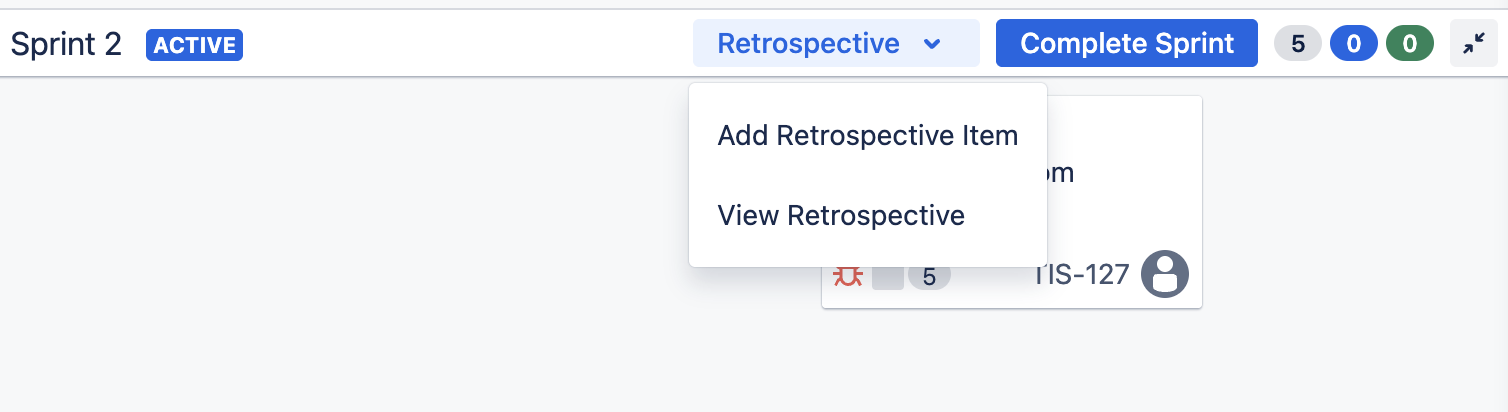
You can also create a new Retrospective item for this sprint directly from this dropdown.
Standalone retrospectives
You can create a Retrospective that is not linked to a sprint:
-
On Kanban boards - all Retrospectives are manually created as needed
-
On Scrum boards - you may wish to create an extra Retrospective session that’s not linked to a sprint to discuss a significant release, project, incident, or for your Program Increment
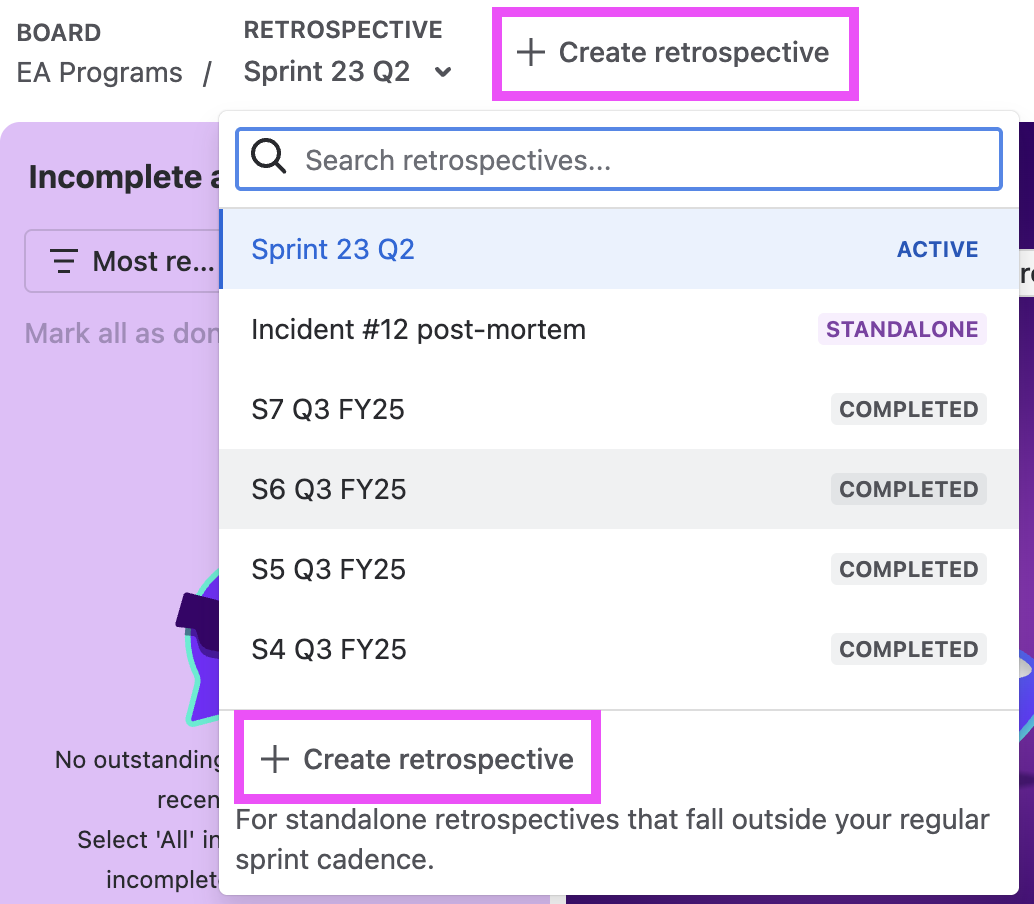
Manually creating a retrospective can be done from the +Create retrospective button in the toolbar or from the retrospective dropdown.
You'll choose a starting template before configuring the rest of your retrospective - see Retrospective templates.
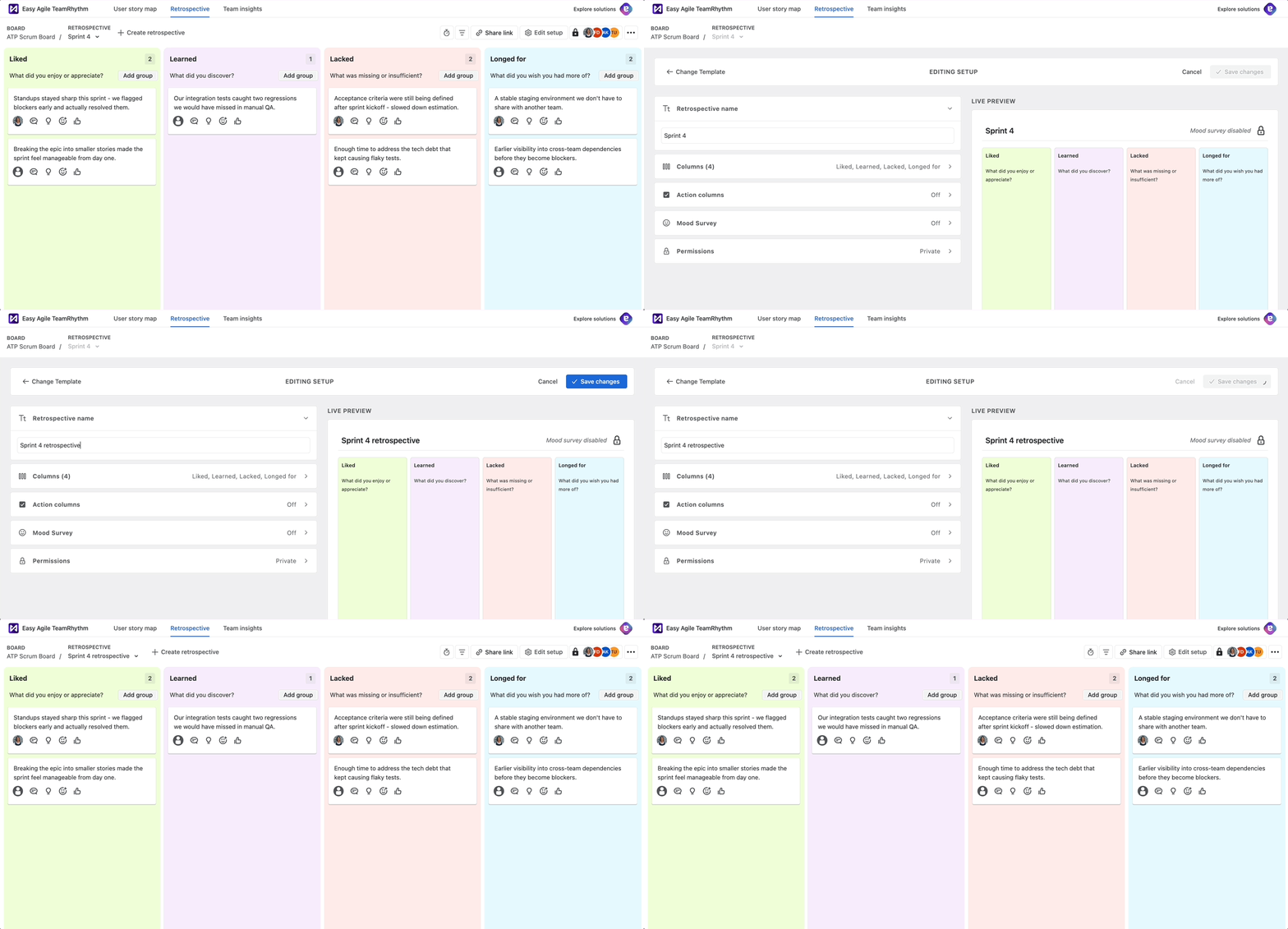
By default, the Retrospective will be named after the date it is created.
Renaming manually created retrospectives
You can update the name of your retrospective from the Edit setup button.
Older Data Center versions
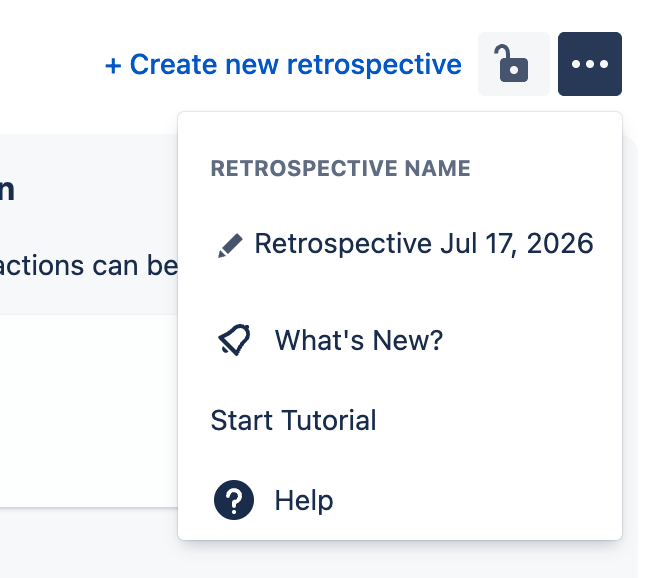
Retrospectives that have been manually created can be edited to update their name.
You can edit the retrospective name from the (…) menu
Next steps
Learn more about: