General Questions
What is Team Insights?
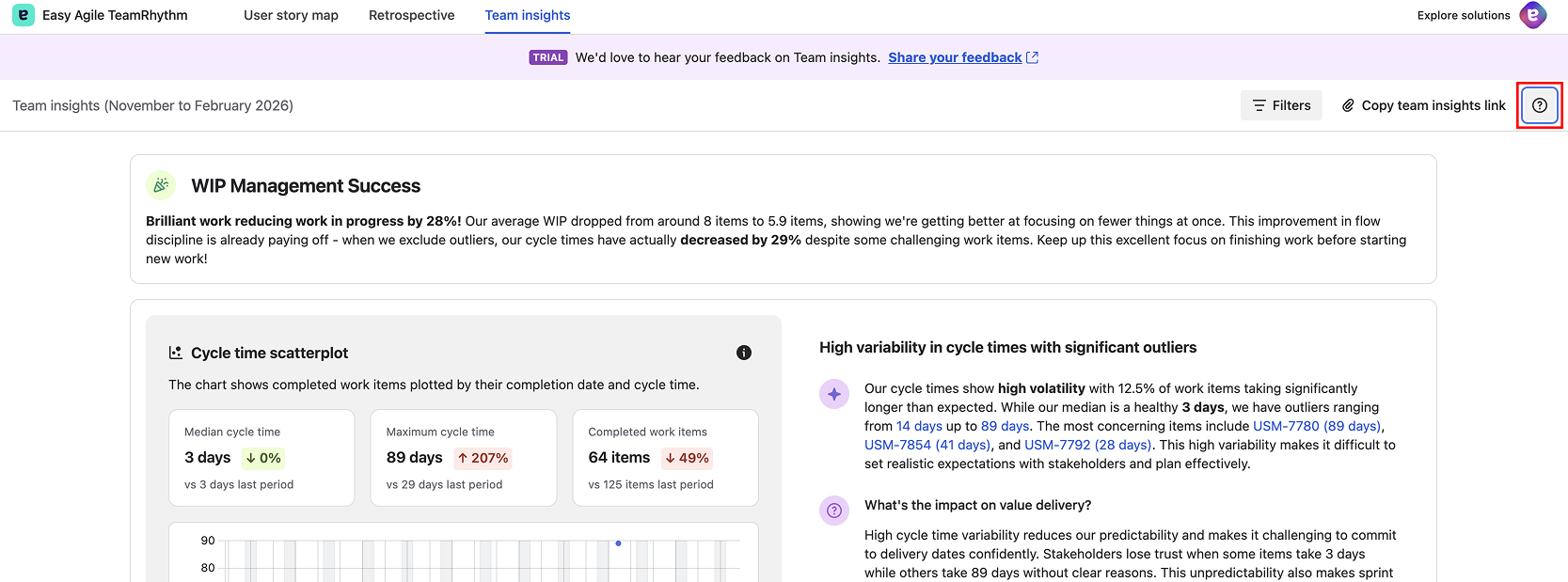
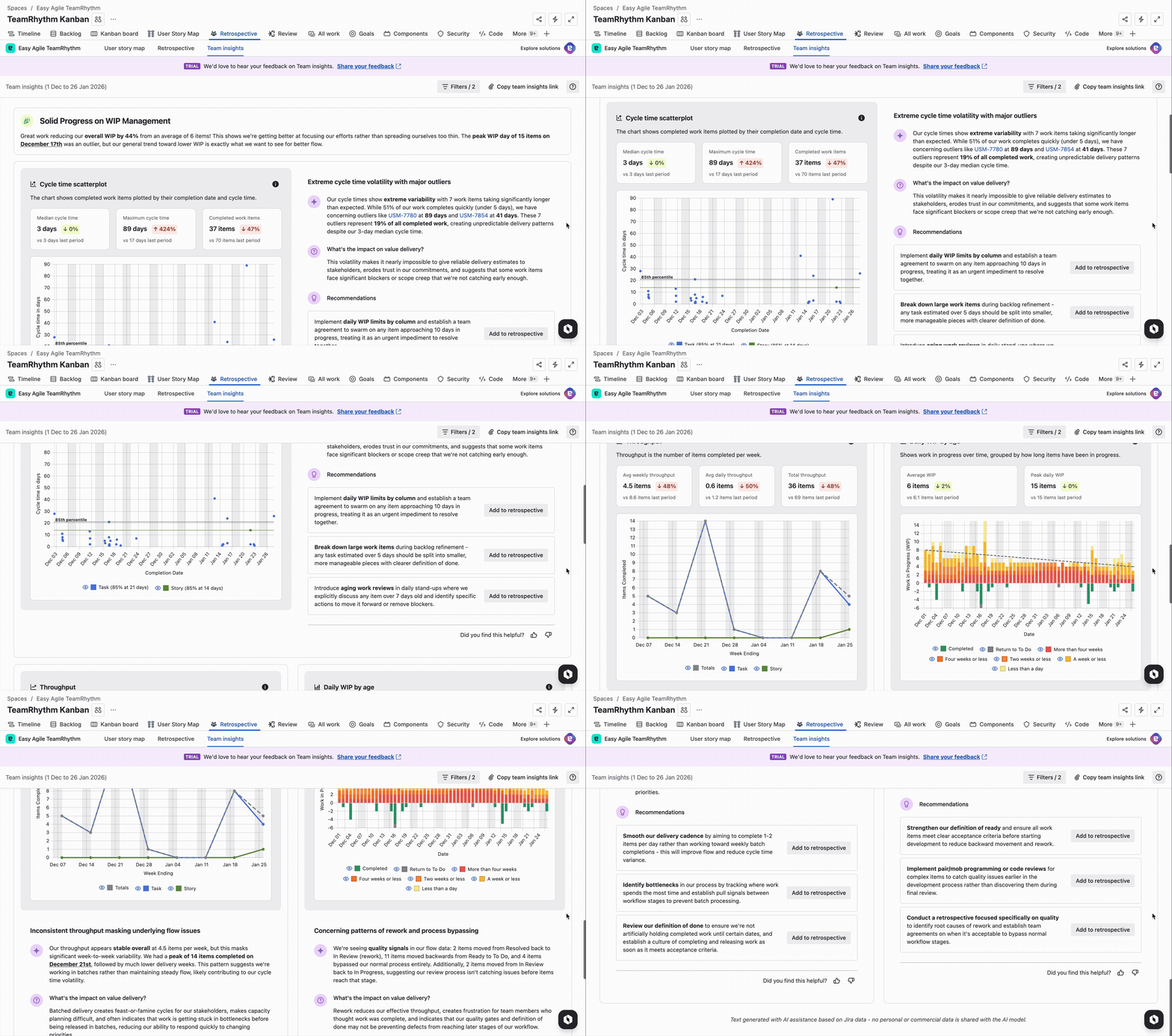
Team Insights (formerly called Team Report) is an AI-powered analysis tool that provides actionable insights into your team's delivery health using Jira data. It analyses flow metrics like cycle time, throughput, and work in progress to help teams identify improvement opportunities.
Who should use Team Insights?
Team Insights is designed for:
-
Team members who want to understand how work flows
-
Scrum masters and agile coaches facilitating retrospectives
-
Team leads and engineering managers monitoring team health
-
Product managers understanding delivery capacity
How often should I check Team Insights?
We recommend:
-
Monthly for regular team health monitoring
-
Before each retrospective to ground discussions in data
-
After major changes to understand impact (new team members, process changes, etc.)
-
Quarterly for trend analysis and strategic planning
Data & Accuracy
Why does my report look different from my colleague's?
Team Insights reports are generated on-demand per user and are non-deterministic due to the AI analysis. Additionally:
-
Different users may have different Jira permissions, affecting which work items they can see
-
Reports per user are cached for several days to enable thorough review
-
Reports will be regenerated when a new Insights level filter is applied
-
Some variations in AI interpretation are normal and expected
Why does my report look off or inaccurate?
Several factors can affect report accuracy:
Insufficient data:
-
New boards need enough data for meaningful trends - we recommend a minimum of 30 days, 60 - 90 days is ideal
-
Teams with very few completed items (less than 10) may not generate reliable insights
Data quality issues:
-
Invisible work - work is captured outside of the jira board that impacts team capacity
-
Inconsistent updates (work items not moved through workflow in real-time)
-
Bulk-imported historical data that doesn't reflect actual work patterns
Configuration issues:
-
Board settings don't match your team's actual workflow
-
Multiple teams or work streams mixed on one board with variable workflows
-
Board workflow lacks information on the state of items
How is cycle time calculated?
Cycle time is the total time a work item spends 'on the board' as per the teams workflow. This includes:
-
Time from the moment work is underway and moved out of the backlog to the final state on the board
-
Excludes items not done such as work items 'cancelled' or moved to 'won't do' or similar status.
What does the 85th percentile mean?
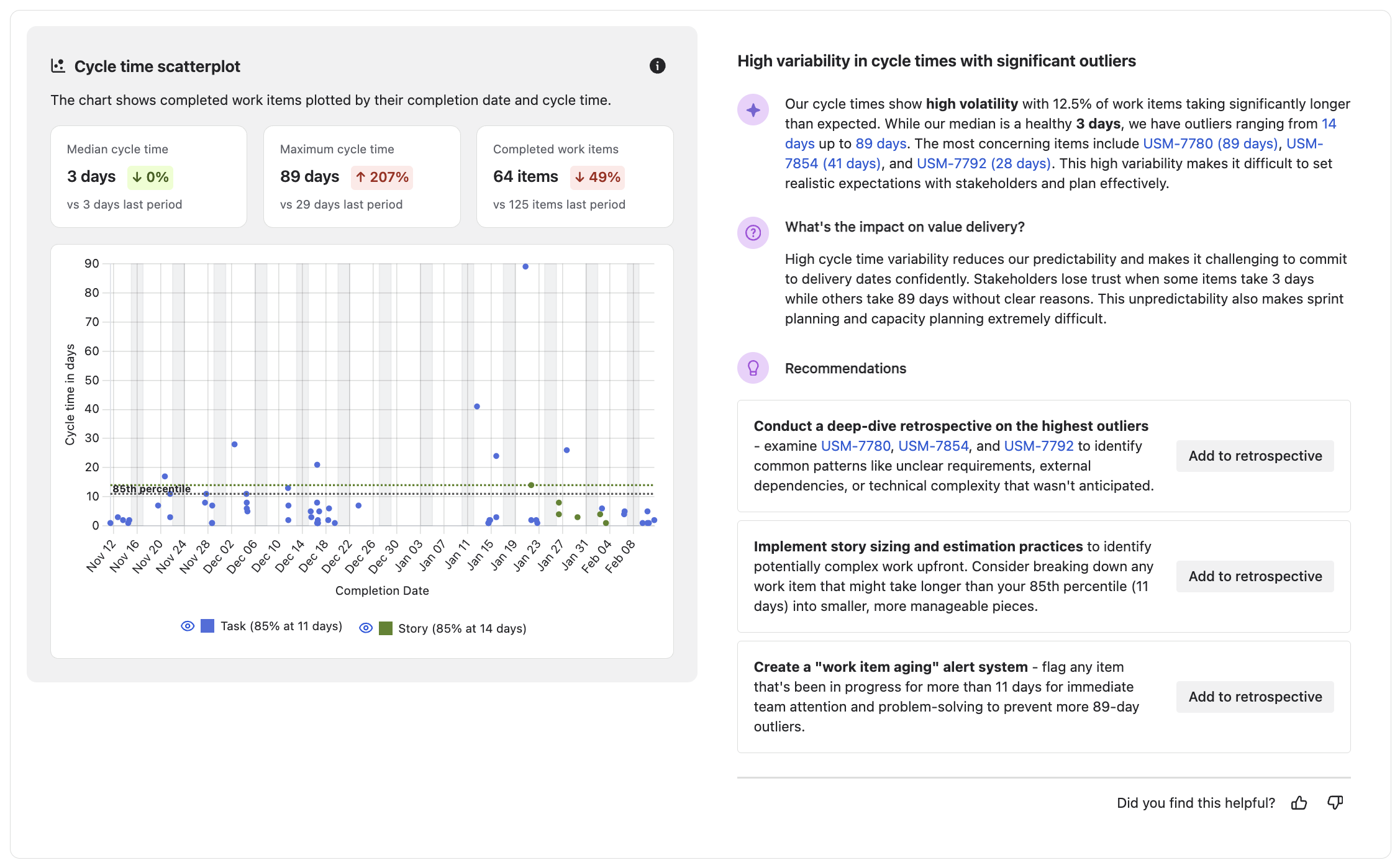
The 85th percentile means that 85% of completed work items have a cycle time at or below this value. It's a commonly used flow metric because:
-
It's more stable than averages (less affected by extreme outliers)
-
It provides a realistic expectation for most work
-
It helps identify outliers (the 15% above the line)
Example:
If your 85th percentile is 10 days, you can say with confidence that 85% of work items will complete within 10 days or less.
Why do some insights mention work items I can't see?
Team Insights respects Jira permissions. If the AI analysis references work items you don't have permission to view:
-
The work item keys will still appear in the text
-
You won't be able to click through to view details
-
This is expected behaviour and protects confidential work
Filtering Questions
Why can't I filter by specific team members or assignees?
Team Insights currently focuses on team-level flow metrics rather than individual performance metrics. This is intentional to:
-
Encourage team-based improvement discussions
-
Avoid creating individual performance pressure
-
Focus on systemic issues rather than individual work items
Why can't I filter by labels or custom fields?
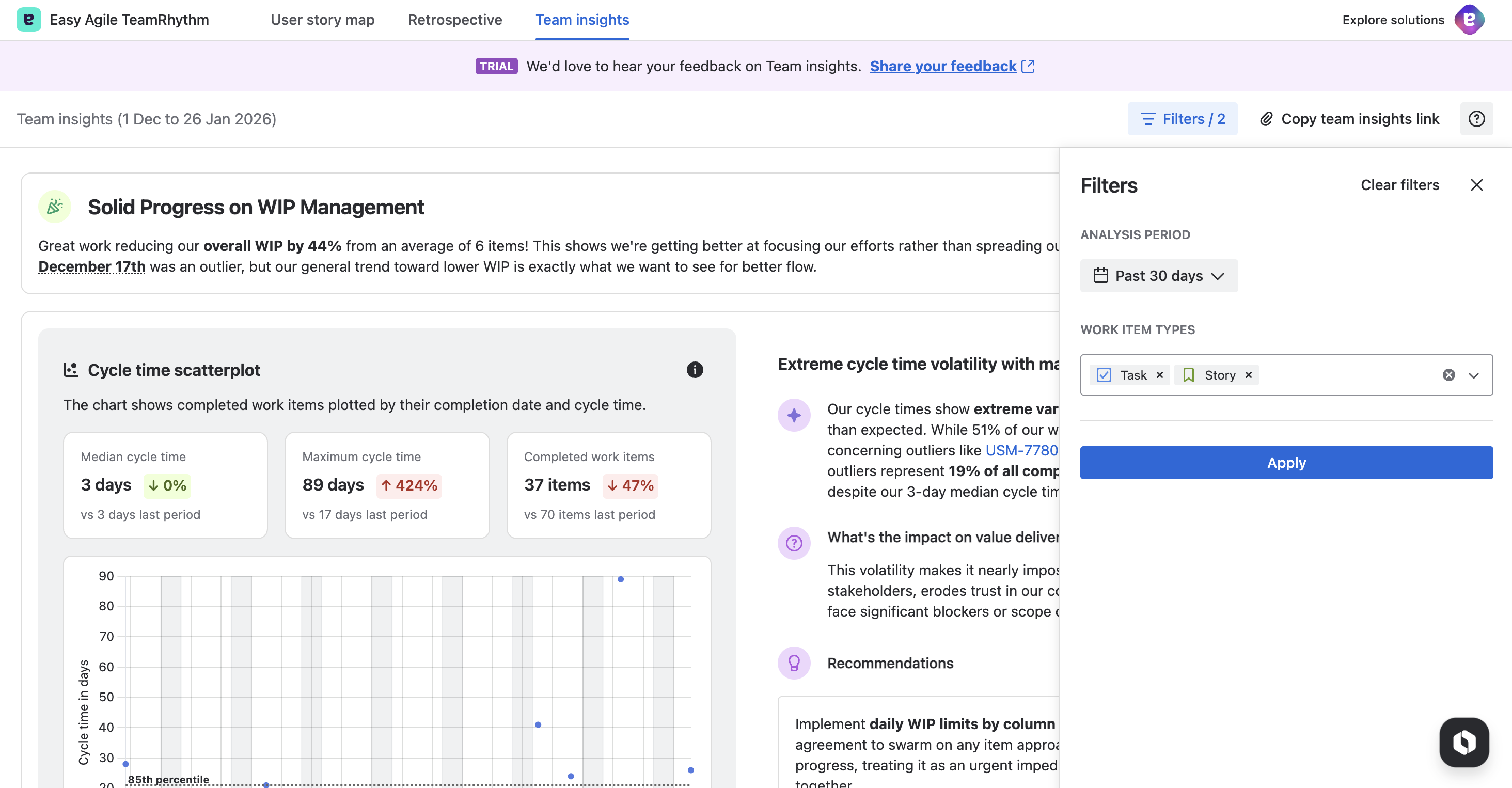
Currently, Team Insights supports filtering by:
-
Analysis period (time range)
-
Work item types (Task, Bug, Story, etc.)
Filtering by labels, custom fields, and other Jira attributes is not yet supported. Would this be helpful for you? Drop us some feedback on what you'd like us to introduce next.
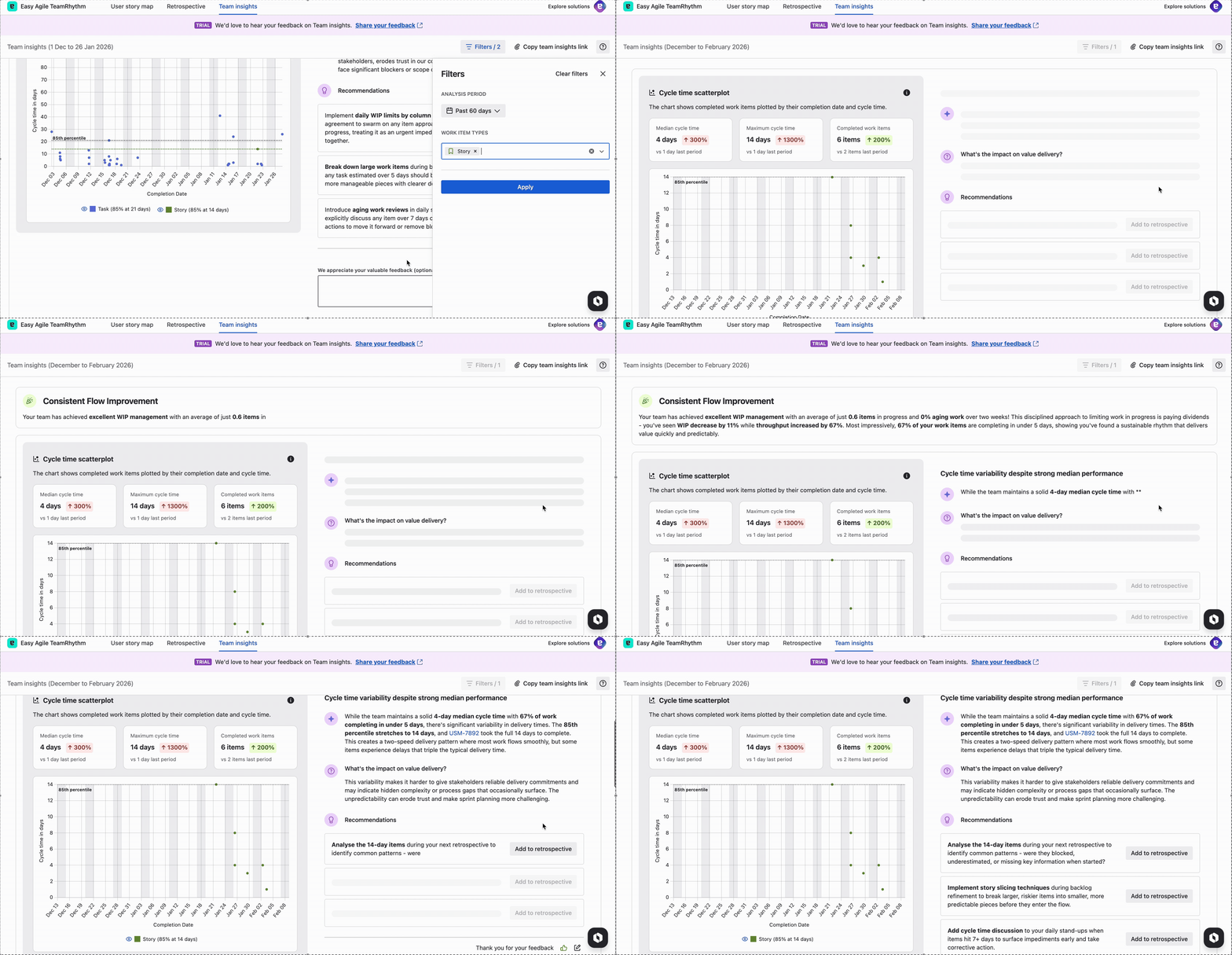
Do filters affect the recommendations?
Yes. When you apply filters:
-
All charts update to show only filtered data
-
AI insights are regenerated based on the filtered dataset
-
Recommendations are tailored to the specific work items included in your filters
This allows you to get focused insights for specific types of work or time periods.
This typically takes 10-30 seconds depending on:
-
Amount of data in your analysis period
-
Complexity of your board configuration
-
Current system load
Technical Issues
"No data available" message
If you see "No data available" or empty charts:
Common causes:
-
No completed work items in the analysis period
-
Solution: Extend the analysis period or complete some work items
-
-
Board has no historical data (new board)
-
Solution: Wait until work items are completed, then check back
-
-
All completed items are filtered out by work item type filters
-
Solution: Check your filters and ensure at least one work item type is selected
-
-
Unmapped status in Workflow
-
Solution: Check your board's workflow configuration in Jira and ensure it reflects the teams actual way of working, and that all status' used by items on the board are visibly mapped to columns.
-
.png?cb=dbfb3df5b81d6cc00206a26d5929ab7f)
Feature Questions
Can I export or download Team Insights?
Currently, Team Insights cannot be directly exported or downloaded. However, you can:
-
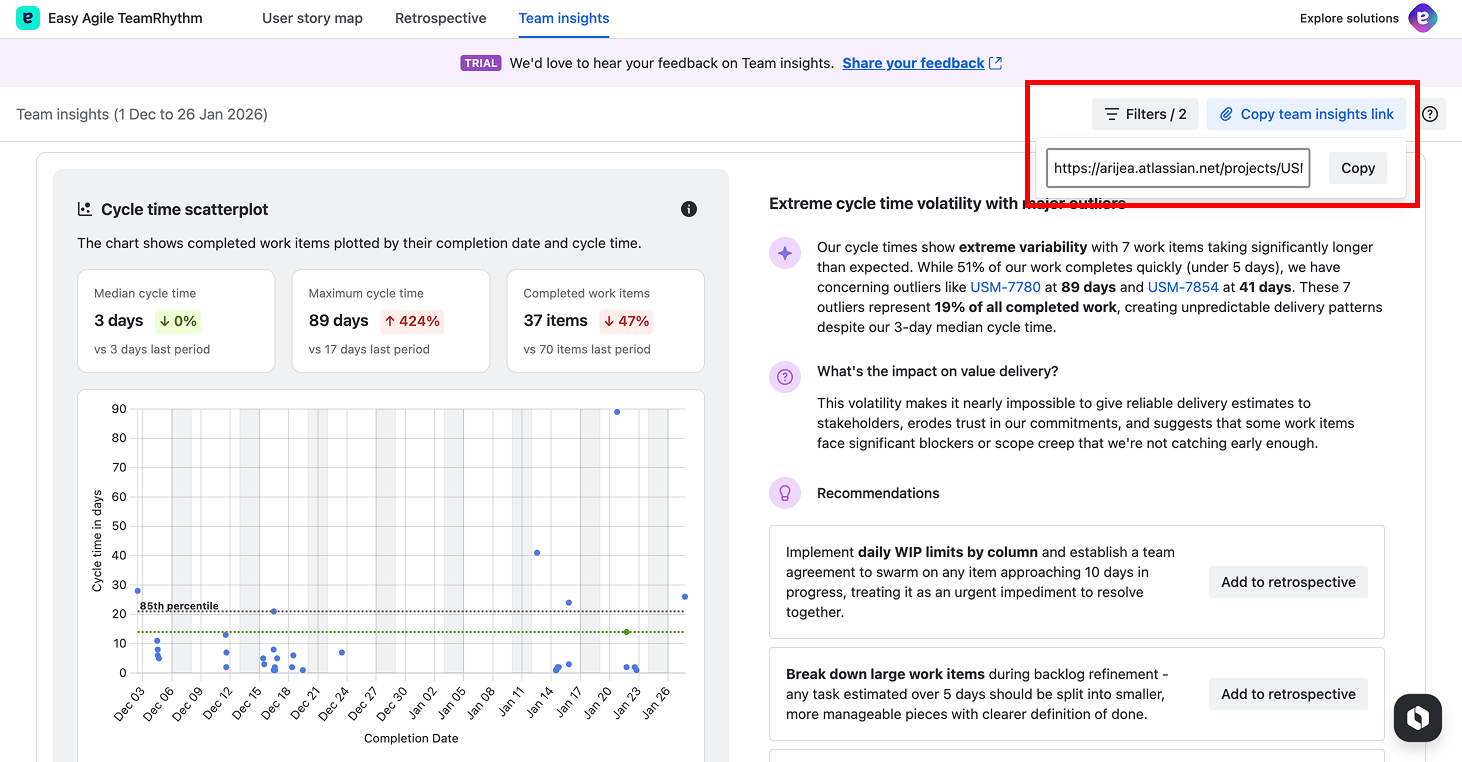
Copy the Team Insights link using the "Copy team insights link" feature to share a direct URL with team members who have access to the same board
-
Take screenshots of charts and insights
-
Use the "Add to retrospective" button to capture recommendations directly into a specific retrospective, choosing the column (Start, Stop, Continue, Comments) and optionally posting anonymously
-
Copy insight text to paste into documentation
Can I schedule automatic Team Insights reports?
Automated scheduling is not currently available. Team Insights reports are generated on-demand when you visit the Team Insights tab.
Can I customise the AI prompts or analysis approach?
The AI analysis approach is standardised to ensure consistent, high-quality insights across all teams. Customisation of AI prompts is not currently available.
Can I add my own context or notes to the report?
Not directly within Team Insights. However, you can:
-
Use the "Add to retrospective" button to capture recommendations in your retrospective — the text is pre-populated from the insight but you can edit it to add your own context before saving
-
Document insights and decisions in your retrospective tools
-
Add comments to relevant Jira work items
-
Maintain a separate team improvement log
-
Use the feedback panel at the bottom of insights to provide feedback (up to 250 characters) to help improve future analysis
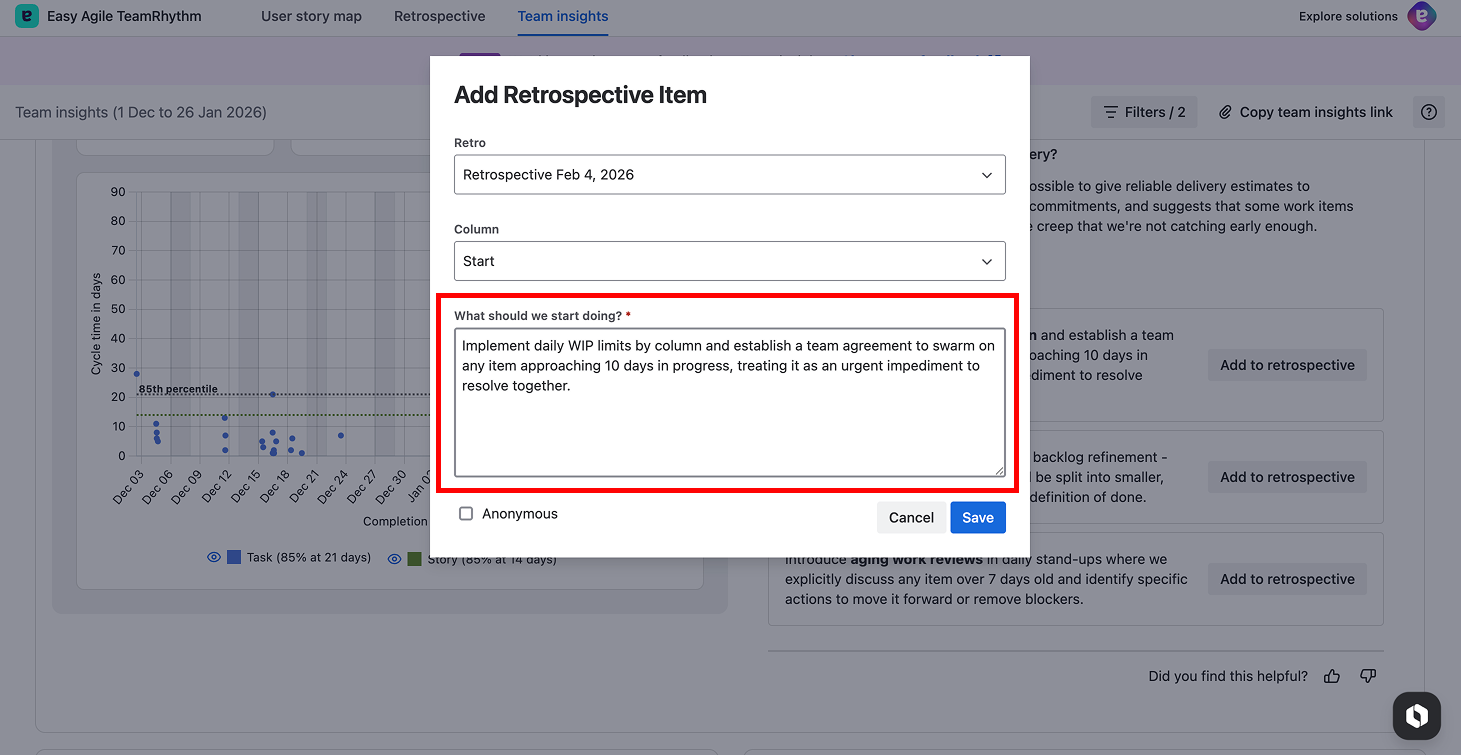
Can I add retrospective items anonymously?
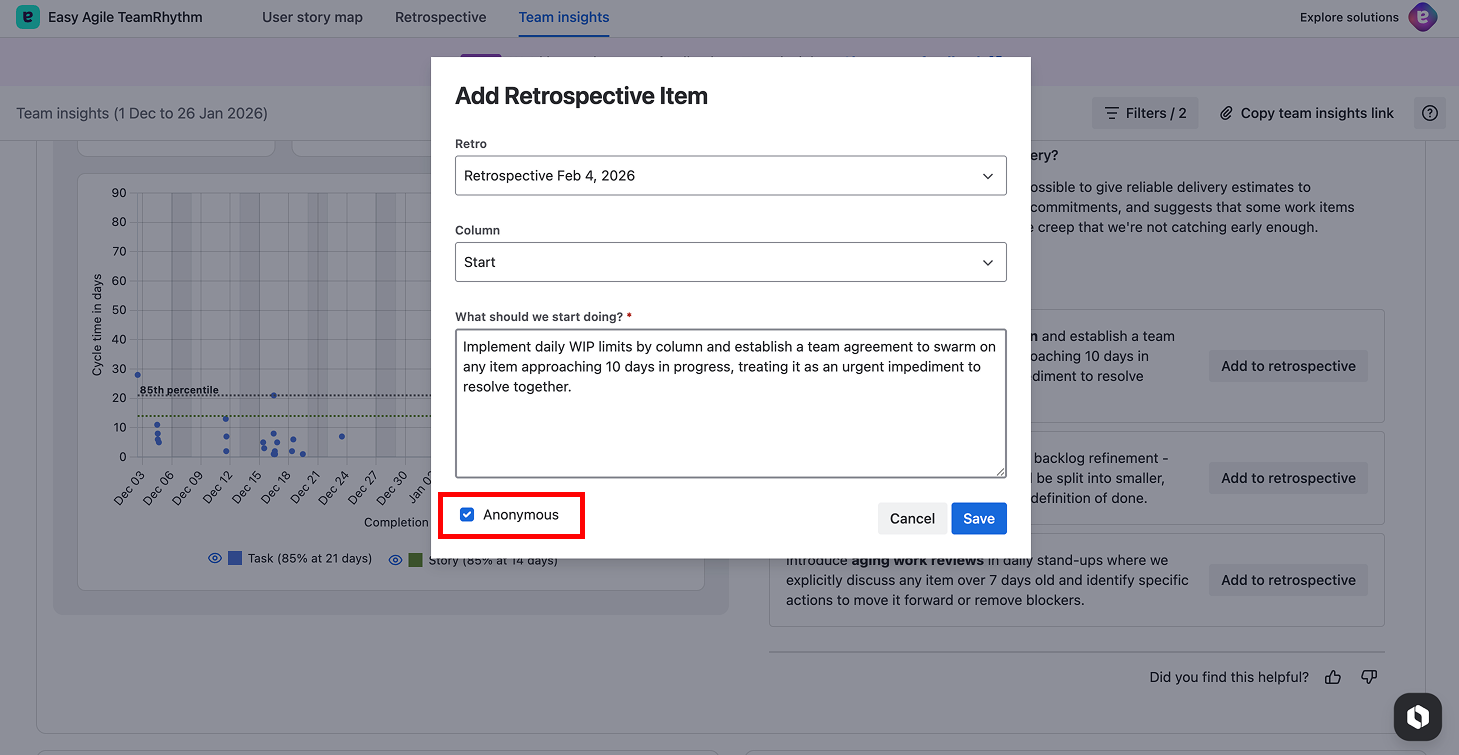
Yes. When using the "Add to retrospective" feature, you can tick the "Anonymous" checkbox before saving. This posts the item without your name attached, encouraging more open and honest contributions to retrospective discussions.
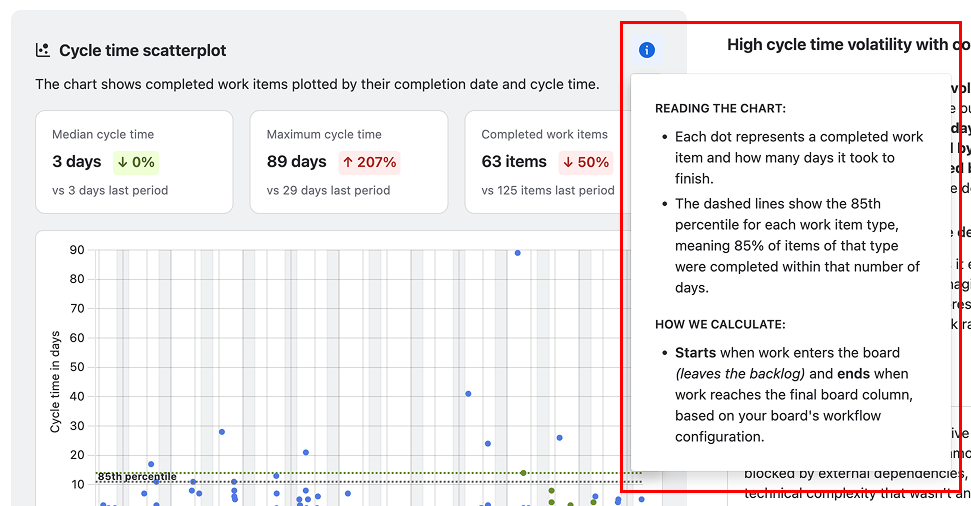
What do the definition tooltips show?
When you hover over certain metric headings or key terms in the insights, a tooltip appears with definitions and explanations. These tooltips help you understand terminology like cycle time, percentiles, and how metrics are calculated, without needing to leave the page or consult external documentation.
How do I share Team Insights with my team?
You can copy a direct link to your current Team Insights view using the "Copy team insights link" feature. Click the share/link icon to open a dialog with the URL, then click "Copy" to copy it to your clipboard. Anyone with access to the same board can use the link to view the same analysis.
Will Team Insights work with Jira Data Center?
Team Insights is currently available for Jira Cloud only. Support for Jira Data Center is being evaluated.
Help drive future feature development and let us know what would be most helpful to you in the product here.
Understanding Results
Our cycle time is higher than expected
High cycle time isn't always a problem/context matter:
Consider:
-
Type of work: Enterprise architecture naturally takes longer than bug fixes
-
Team maturity: New teams often have higher cycle times initially, this can start again when new members join or team configuration changes.
-
Work item size: Are your stories consistently too large?
-
External dependencies: Do items wait on other teams or vendors?
-
Definition of "In Progress": Is your workflow configured correctly?
Actions to take:
-
Review work items with high cycle time to identify patterns
-
Look at Daily WIP by Age. Is work stagnating?
-
Check if items are blocked or waiting
-
Consider breaking down large work items
-
Examine dependencies and handoffs
Throughput is declining
Declining throughput can indicate several issues:
Possible causes:
-
Team size reduction, increased absences, or seasonal leave patterns
-
Taking on larger, more complex work
-
Increased time spent on technical debt or operational work
-
Process changes that inadvertently slowed work
-
Growing amount of unplanned work (interruptions)
-
Context switching to a new priority
Actions to take:
-
Correlate with team events (holidays, departures, etc.)
-
Check WIP. Is the team taking on too much at once?
-
Review cycle time. Is work taking longer per item?
-
Discuss with the team. What's changed recently?
WIP keeps growing
Growing work in progress is a red flag for flow:
Why it matters:
-
High WIP reduces focus and increases context switching
-
Items take longer to complete (increased cycle time)
-
Team becomes less predictable and responsive
Actions to take:
-
Review Daily WIP by Age to see what's aging
-
Establish WIP limits for your workflow stages
-
Focus on finishing work rather than starting new work
-
Identify and remove blockers on in-progress work
-
Consider if the team is being interrupted too often
Getting Help
Where can I provide feedback?
We actively seek feedback to improve Team Insights:
-
Thumbs up/down buttons: Use these on each insight to rate helpfulness
-
Feedback form: Click the feedback link in the banner at the top of Team Insights
-
Support tickets: Contact Easy Agile support for detailed feedback or feature requests
How do I report a bug?
If you encounter a technical issue or bug:
-
Note the specific error message or behaviour
-
Take screenshots if applicable
-
Record steps to reproduce the issue
-
Contact Easy Agile support with these details
Where can I learn more?
Resources:
-
Easy Agile documentation: https://support.easyagile.com
-
Easy Agile blog: Articles on agile practices and flow metrics
-
In-app help: Click the "?" icon in Team Insights for contextual help
Community:
-
Easy Agile user community forum
-
Atlassian Community for Jira-related questions
Frequently Asked Questions
Does Team Insights replace our retrospectives?
No. Team Insights is a tool to enhance retrospectives, not replace them. It provides data-driven conversation starters, but the human discussion, context, and decision-making remain essential.
Is my data secure?
Yes. See the Data & Privacy page for detailed information about data handling, security, and privacy practices.
Will this tool track my individual performance?
No. Team Insights is designed for team-level analysis. While it may reference specific work items as examples, it does not track or report on individual team member performance.
Do I need special Jira permissions to use Team Insights?
You need permission to:
-
Access the Jira board
-
View work items on the board
-
Install and use Easy Agile TeamRhythm
You'll only see insights based on work items you have permission to view in Jira.
Can I use Team Insights with multiple teams?
Yes. Team Insights analyses one board at a time, however it is most effective when the board represents a single team's work.
Does Team Insights support languages other than English?
Currently, Team Insights insights and recommendations are generated in English only. Your Jira data can be in any language, but the AI analysis and recommendations will be in English.
Still Need Help?
If you can't find the answer to your question:
-
Search the documentation: Use the search function to find specific topics
-
Check recent updates: Review the What's New section for recent feature changes
-
Contact support: Reach out to Easy Agile support via the Help & Support section